> For the complete documentation index, see [llms.txt](https://docs.apryse.com/llms.txt). Markdown versions of documentation pages are available by appending `.md` to page URLs; this page is available as [Markdown](https://docs.apryse.com/core/get-started/frameworks/dotnet.md).

# Build a .NET Framework PDF library app with Apryse Server SDK

Learn how to build a simple .NET Framework PDF application in C# or VB using the Apryse PDF library and Server SDK to generate PDFs programmatically.

This guide shows how to build a simple .NET Framework PDF application on Windows that uses the [Apryse Server SDK](https://docs.apryse.com/try-now?tab-cfc13cf95cb8=server+%2F+desktop+sdk) and `PDFNet` library to generate a PDF programmatically. You’ll set up a minimal project, install the SDK, and add the required code to create a blank PDF document. This example provides a practical foundation for building more advanced document‑generation workflows.

## Prerequisites

* Install [Visual Studio](https://visualstudio.microsoft.com/downloads/) to build, test, and deploy applications. This guide uses Visual Studio 2022. The minimum supported version is Visual Studio 2019.
* Install the **.NET desktop development** workload and the **.NET Framework development tools** for your version of .NET Framework. You can install these components through the Visual Studio Installer. For more, see [Microsoft's documentation](https://learn.microsoft.com/en-us/dotnet/framework/install/guide-for-developers#to-install-the-net-framework-developer-pack-or-targeting-pack).
* Get your Apryse trial key.

{% @apryse-license-key/apryse-license-key platform="SERVER" variant="full" %}

{% hint style="info" %}
**Run Apryse SDK in production**

A commercial license key is required for use in a production environment. [Contact sales](https://apryse.com/form/contact-sales) to purchase a commercial license key.
{% endhint %}

{% hint style="warning" %}
**Keep your commercial license key confidential**

License keys are uniquely generated and strictly confidential. Don't publish or store them in any public location, including public GitHub repositories.
{% endhint %}

## 1. Set up your project

In Visual Studio, begin by setting up your project and preparing your workspace for the application.

1. Open **Visual Studio** and go to **File > New > Project.**
2. Select **C# Console App (.NET Framework)** or **VB Console App (.NET Framework)**, then click **Next.**
3. Add a **Project name**.
4. Specify where to save your project using the **Location** field, then click **Next.**

{% hint style="info" %}
**Info**

Remember the file location for your project. You'll need it later when verifying this workflow.
{% endhint %}

5. In the **Framework** dropdown, select the .NET Framework version. For example, **.NET Framework 4.8.1.**
6. Click **Create to** launch the new app where you can run and debug your project.

## 2. Add the Apryse SDK

Next, add the Apryse SDK to your .NET Framework application and configure your project to work with PDF documents. You can install the SDK using the NuGet Package Manager (recommended) or manually download and reference the SDK files.

{% tabs %}
{% tab title="NuGet" %}

1. In **Visual Studio**, go to **Tools >** **NuGet Package Manager >** **Manage NuGet Packages for Solution**.
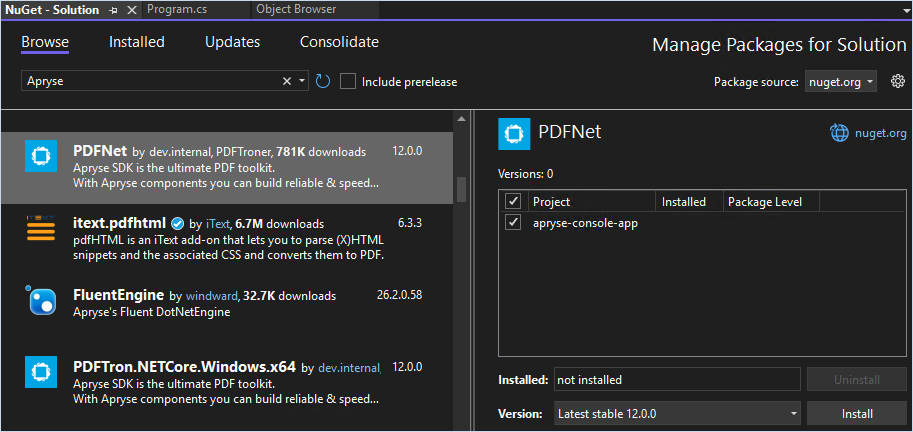
2. From the **Browse** tab, enter *Apryse* in the **Search** field. This shows you the various packages that Apryse has published.
3. From the search results, select **PDFNet**. For more package information, see [NuGet](https://www.nuget.org/packages/PDFNet).
4. In the **Manage Packages for Solution** dialog, select the project, then click **Install.**

<figure><img src="https://3779731113-files.gitbook.io/~/files/v0/b/gitbook-x-prod.appspot.com/o/spaces%2Fziw3GiL98Xfj63F3He8h%2Fuploads%2Fgit-blob-3863de15dab1fd7faf54e1f86be79e6604aa64de%2Fcb430eb0f9580de9dc3672c6b879e9594ff4e7be-913x432.png?alt=media" alt="Visual Studio Manage NuGet Packages window showing the PDFTron.NetFramework.x64 package with version options and an Install button."><figcaption><p>Manage NuGet Packages dialog in Visual Studio with PDFTron.NetFramework.x64 installation options.</p></figcaption></figure>

5. In the **Preview Changes** modal, click **Apply** to install the package in your project.
6. Check the **Output window** **(Package Manager)** to confirm the installation completed successfully:

{% code lineNumbers="true" %}

```
Adding package 'PDFNet.12.0.0' to folder 'C:\Users\...'
Added package 'PDFNet.12.0.0' to folder 'C:\Users\...'
Added package 'PDFNet.12.0.0' to 'packages.config'
Executing script file 'C:\Users\...'
Successfully installed 'PDFNet 12.0.0' to apryse-console-app
Executing nuget actions took 4.25 sec
Time Elapsed: 00:00:04.7114123
========== Finished ==========
```

{% endcode %}

7. In **Solution Explorer**, open the source file for your project (`Program.cs` for C# or `Module1.vb` for VB). Replace the file contents with the following code, update your license key, and save the file:

{% tabs %}
{% tab title="C#" %}

<pre class="language-csharp" data-line-numbers><code class="lang-csharp">using System;
// Most commonly used namespaces for Apryse SDK.
using pdftron;
using pdftron.Common;
using pdftron.PDF;
using pdftron.SDF;
namespace myApp
{
    class Program
    {
        // Load appropriate PDFNet libraries at runtime
        // Automatically load 32-bit or 64-bit binary for app's architecture
        private static pdftron.PDFNetLoader pdfNetLoader = pdftron.PDFNetLoader.Instance();
        static void Main(string[] args)
        {
            // Initialize PDFNet before using any Apryse related
            // classes and methods (some exceptions can be found in API)
            PDFNet.Initialize("<code class="expression">visitor.claims.serverKey || "YOUR_LICENSE_KEY"</code>");
            // Using PDFNet related classes and methods, must
            // catch or throw PDFNetException
            try
            {
                using (PDFDoc doc = new PDFDoc())
                {
                    doc.InitSecurityHandler();
                    // An example of creating a new page and adding it to
                    // doc's sequence of pages
                    Page newPg = doc.PageCreate();
                    doc.PagePushBack(newPg);
                    // Save as a linearized file which is most popular
                    // and effective format for quick PDF Viewing.
                    doc.Save("output.pdf", SDFDoc.SaveOptions.e_linearized);
                    System.Console.WriteLine("Done. Results saved in output.pdf");
                }
            }
            catch (PDFNetException e)
            {
                System.Console.WriteLine(e.Message);
            }
            PDFNet.Terminate();
        }
    }
}
</code></pre>

{% endtab %}

{% tab title="VB" %}

<pre class="language-vb" data-line-numbers><code class="lang-vb">'Default namespace
Imports System

'Majority of Apryse SDK can be used with these namespaces
Imports pdftron
Imports pdftron.Common
Imports pdftron.SDF
Imports pdftron.PDF

Module Module1

    ' Required for AnyCPU implementation
    ' Load appropriate PDFNet libraries at runtime
    ' Automatically load 32-bit or 64-bit binary for app's architecture
    Dim pdfNetLoader As PDFNetLoader
    Sub New()
    pdfNetLoader = pdftron.PDFNetLoader.Instance()
    End Sub

    Sub Main()
        ' Initialize PDFNet before using any Apryse related
        ' classes and methods (some exceptions can be found in API)
        PDFNet.Initialize("<code class="expression">visitor.claims.serverKey || "YOUR_LICENSE_KEY"</code>")

        ' Using PDFNet related classes and methods,
        ' must catch or throw PDFNetException
        Try

            Using doc As PDFDoc = New PDFDoc

                ' An example of creating a new page and adding it to
                ' doc's sequence of pages
                Dim newPg As Page = doc.PageCreate()
                doc.PagePushBack(newPg)

                ' Save as a linearized file which is most popular
                ' and effective format for quick PDF Viewing.
                doc.Save("output.pdf", SDFDoc.SaveOptions.e_linearized)
                Console.WriteLine("Done. Results saved in output.pdf")
            End Using

        Catch e As PDFNetException
            Console.WriteLine(e)
        End Try
    End Sub

End Module
</code></pre>

{% endtab %}
{% endtabs %}

{% hint style="info" %}
**Info**

If you're signed in with an Apryse account, your license key is automatically prepopulated in all code snippets.
{% endhint %}

{% hint style="warning" %}
**Performance warning**

New C# or VB .NET Framework projects often use **Any CPU** with **Prefer 32-bit** enabled by default in Visual Studio. On a 64-bit version of Windows, this causes the application to run as a 32-bit process and load the 32-bit Apryse libraries. To run as a 64-bit process, go to **Project Properties** > **Build** in Visual Studio and deselect **Prefer 32-bit** or change the **Platform target** to **x64**. This ensures the application can run as a 64-bit process on 64-bit Windows and load the appropriate `PDFNet` native libraries.
{% endhint %}

With this code, you can:

* Import the required Apryse SDK namespaces.
* Load the appropriate `PDFNet` native libraries for the application's architecture.
* Initialize the Apryse SDK with a license key.
* Create a new PDF document, add a blank page, and save it as a linearized PDF.
* Handle SDK exceptions and automatically release resources.
* Terminate the Apryse SDK when processing is complete.

**About PDFNetLoader**

The NuGet package uses `PDFNetLoader` to support both 32-bit and 64-bit processes from a single build. It deploys both the x86 and x64 versions of `PDFNet.dll` and automatically loads the appropriate version at runtime based on the application's architecture.

For most applications, no additional configuration is required. This approach works well with the **Any CPU** platform target commonly used by .NET Framework projects.

If your application targets a specific architecture, such as x64 or x86, you may be able to deploy only the corresponding version of `PDFNet.dll` and remove `PDFNetLoader`. However, this requires additional changes to the project's references and deployment configuration and is not covered in this guide.

In summary, `PDFNetLoader` is primarily intended for **Any CPU** applications that need to support both 32-bit and 64-bit processes from the same build.

For more, see our [blog post](https://apryse.com/blog/dotnet/dotnet-pdf-control-nuget) about PDFNetLoader.
{% endtab %}

{% tab title="Manual" %}

1. Download and unzip the [PDFNetDotNet4.zip](https://downloads.apryse.com/downloads/PDFNetDotNet4.zip) file.
2. Copy the extracted `/PDFNetDotNet4/Lib` folder.
3. Go to your project's folder. By default, the path is similar to:

{% code lineNumbers="true" %}

```
C:\Users\<your_name>\source\repos\<project_name>\<project_name>
```

{% endcode %}

4. Paste the `/PDFNetDotNet4/Lib` folder you copied into the project folder that contains your `.csproj` or `.vbproj` file. The resulting structure looks similar to:

{% tabs %}
{% tab title="C#" %}
{% code lineNumbers="true" %}

```
C:\Users\<your_name>\source\repos\
└── apryse-console-app\
    └── apryse-console-app\
        ├── bin\
        ├── obj\
        ├── Properties\
        ├── Lib\
        │   ├── PDFNetLoader.dll
        │   └── PDFNet\
        │       ├── x64\
        │       │   └── PDFNet.dll
        │       └── x86\
        │           └── PDFNet.dll
        ├── App.config
        ├── apryse-console-app.csproj
        └── Program.cs
```

{% endcode %}
{% endtab %}

{% tab title="VB" %}
{% code lineNumbers="true" %}

```
C:\Users\<your_name>\source\repos\
└── apryse-console-app\
    └── apryse-console-app\
        ├── bin\
        ├── My Project\
        ├── obj\
        ├── Lib\
        │   ├── PDFNetLoader.dll
        │   └── PDFNet\
        │       ├── x64\
        │       │   └── PDFNet.dll
        │       └── x86\
        │           └── PDFNet.dll
        ├── App.config
        ├── apryse-console-app.vbproj
        └── Module1.vb
```

{% endcode %}
{% endtab %}
{% endtabs %}

5. In the **Solution Explorer** in Visual Studio, right-click **References** **> Add Reference.**
6. In the **Reference Manager** modal, click **Browse**.
7. Add the copied `Lib\PDFNetLoader.dll` folder from the following location to the references, and click **OK**:

{% code lineNumbers="true" %}

```
C:\Users\<your_name>\source\repos\apryse-console-app\apryse-console-app\Lib\PDFNetLoader.dll
```

{% endcode %}

8. Add the following x86 version of `PDFNet.dll` as a reference, then click **OK:**

{% code lineNumbers="true" %}

```
C:\Users\<your_name>\source\repos\apryse-console-app\apryse-console-app\Lib\PDFNet\x86\PDFNet.dll
```

{% endcode %}

{% hint style="info" %}
**Info**

When used with `PDFNetLoader.dll`, this configuration allows an **Any CPU** application to run on both 32-bit and 64-bit Windows systems by loading the appropriate Apryse libraries at runtime.
{% endhint %}

9. In the **Solution Explorer**, select **References > PDFNet,** and set its **Copy Local** property to **False**.
10. Click to open the `App.config` file from the **Solution Explorer**, add the following `loadFromRemoteSources` property, and save:

{% code title="App.config" lineNumbers="true" %}

```xml
<?xml version="1.0" encoding="utf-8" ?>
<configuration>
    ...
    <runtime>
        <loadFromRemoteSources enabled="true" />
    </runtime>
    ...
</configuration>
```

{% endcode %}

11. Right-click your project and select **Properties**.

{% tabs %}
{% tab title="C#" %}
From the project properties, open the **Build Events** tab. Add the following command to the **Post-build event** field:

{% code lineNumbers="true" %}

```
xcopy "$(ProjectDir)Lib\PDFNet" "$(TargetDir)PDFNet" /S /I /Y
```

{% endcode %}
{% endtab %}

{% tab title="VB" %}
From the project properties, open the **Compile** tab, then scroll to the **Build Events** button. Add the following command to the **Post-build event command line** field, then click **OK**:

{% code lineNumbers="true" %}

```
xcopy "$(ProjectDir)Lib\PDFNet" "$(TargetDir)PDFNet" /S /I /Y
```

{% endcode %}
{% endtab %}
{% endtabs %}

{% hint style="info" %}
**Info**

This post-build event copies the Apryse native libraries from the project's `Lib\PDFNet` folder to the application's output directory (`bin\Debug` or `bin\Release`) so that `PDFNetLoader` can load the appropriate 32-bit or 64-bit binaries at runtime.
{% endhint %}

12. In **Solution Explorer**, open the source file for your project (`Program.cs` for C# or `Module1.vb` for VB). Replace the file contents with the following code, update your license key, and save:

{% tabs %}
{% tab title="C#" %}

<pre class="language-csharp" data-line-numbers><code class="lang-csharp">using System;
// Most commonly used namespaces for Apryse SDK.
using pdftron;
using pdftron.Common;
using pdftron.PDF;
using pdftron.SDF;
namespace myApp
{
    class Program
    {
       // Load appropriate PDFNet libraries at runtime
        // Automatically load 32-bit or 64-bit binary for app's architecture
        private static pdftron.PDFNetLoader pdfNetLoader = pdftron.PDFNetLoader.Instance();
        static void Main(string[] args)
        {
            // Initialize PDFNet before using any Apryse related
            // classes and methods (some exceptions can be found in API)
            PDFNet.Initialize("<code class="expression">visitor.claims.serverKey || "YOUR_LICENSE_KEY"</code>");
            // Using PDFNet related classes and methods, must
            // catch or throw PDFNetException
            try
            {
                using (PDFDoc doc = new PDFDoc())
                {
                    doc.InitSecurityHandler();
                    // An example of creating a new page and adding it to
                    // doc's sequence of pages
                    Page newPg = doc.PageCreate();
                    doc.PagePushBack(newPg);
                    // Save as a linearized file which is most popular
                    // and effective format for quick PDF Viewing.
                    doc.Save("output.pdf", SDFDoc.SaveOptions.e_linearized);
                    System.Console.WriteLine("Done. Results saved in output.pdf");
                }
            }
            catch (PDFNetException e)
            {
                System.Console.WriteLine(e.Message);
            }
            PDFNet.Terminate();
        }
    }
}
</code></pre>

{% endtab %}

{% tab title="VB" %}

<pre class="language-vb" data-line-numbers><code class="lang-vb">'Default namespace
Imports System

'Majority of Apryse SDK can be used with these namespaces
Imports pdftron
Imports pdftron.Common
Imports pdftron.SDF
Imports pdftron.PDF

Module Module1

    ' Required for AnyCPU implementation
    ' Load appropriate PDFNet libraries at runtime
    ' Automatically load 32-bit or 64-bit binary for app's architecture
    Dim pdfNetLoader As PDFNetLoader
    Sub New()
    pdfNetLoader = pdftron.PDFNetLoader.Instance()
    End Sub

    Sub Main()
        ' Initialize PDFNet before using any Apryse related
        ' classes and methods (some exceptions can be found in API)
        PDFNet.Initialize("<code class="expression">visitor.claims.serverKey || "YOUR_LICENSE_KEY"</code>")

        ' Using PDFNet related classes and methods,
        ' must catch or throw PDFNetException
        Try

            Using doc As PDFDoc = New PDFDoc

                ' An example of creating a new page and adding it to
                ' doc's sequence of pages
                Dim newPg As Page = doc.PageCreate()
                doc.PagePushBack(newPg)

                ' Save as a linearized file which is most popular
                ' and effective format for quick PDF Viewing.
                doc.Save("output.pdf", SDFDoc.SaveOptions.e_linearized)
                Console.WriteLine("Done. Results saved in output.pdf")
            End Using

        Catch e As PDFNetException
            Console.WriteLine(e)
        End Try
    End Sub

End Module
</code></pre>

{% endtab %}
{% endtabs %}

{% hint style="info" %}
**Info**

If you're signed in with an Apryse account, your license key is automatically prepopulated in all code snippets.
{% endhint %}

{% hint style="warning" %}
**Performance warning**

New C# or VB .NET Framework projects often use **Any CPU** with **Prefer 32-bit** enabled by default in Visual Studio. On a 64-bit version of Windows, this causes the application to run as a 32-bit process and load the 32-bit Apryse libraries. To run as a 64-bit process, go to **Project Properties** > **Build** in Visual Studio and deselect **Prefer 32-bit** or change the **Platform target** to **x64**. This ensures the application can run as a 64-bit process on 64-bit Windows and load the appropriate `PDFNet` native libraries.
{% endhint %}

With this code, you can:

* Import the required Apryse SDK namespaces.
* Load the correct `PDFNet` native libraries based on the application's architecture.
* Initialize the Apryse SDK with a license key.
* Create a new PDF document, add a blank page, and save it as a linearized PDF.
* Handle SDK exceptions and automatically release resources.
* Terminate the Apryse SDK when processing is complete.

**About PDFNetLoader**

The steps in this section use `PDFNetLoader` to support both 32-bit and 64-bit processes from a single build. This approach deploys both the x86 and x64 versions of `PDFNet.dll` and automatically loads the appropriate version at runtime based on the application's architecture.

For most applications, this level of flexibility is not required. If your application targets a specific architecture, such as x64 or x86, reference the corresponding version of `PDFNet.dll` directly, set **Copy Local** to `True`, update the project's **Platform target** in Visual Studio, and remove both `PDFNetLoader.dll` and the `PDFNetLoader` initialization code.

If your application must support both 32-bit and 64-bit environments, you can continue using `PDFNetLoader`. Another option is to deploy only the appropriate version of `PDFNet.dll` based on the target system. For example, a 64-bit installation can deploy the x64 version of `PDFNet.dll`, while a 32-bit installation can deploy the x86 version. Since only one version is installed, `PDFNetLoader` is not required.

In summary, `PDFNetLoader` is primarily intended for **Any CPU** applications that need to support both 32-bit and 64-bit processes from the same build. Applications that target a specific architecture can usually reference the appropriate version of `PDFNet.dll` directly.

For more, see our [blog post](https://apryse.com/blog/dotnet/dotnet-pdf-control-nuget) about PDFNetLoader.
{% endtab %}
{% endtabs %}

## 3. Verify your output

Finally, build and run your application to confirm that the Apryse Server SDK is working correctly. After the application runs successfully, it will generate a blank PDF file locally.

1. In Visual Studio, run the app by selecting the **Start** button on the toolbar, or by pressing **F5.** A successful output looks similar to:

{% tabs %}
{% tab title="Batch" %}
{% code lineNumbers="true" %}

```cmd
PDFNet is running in demo mode.
PackageV2: base
Done. Results saved in output.pdf
```

{% endcode %}
{% endtab %}
{% endtabs %}

2. Navigate to this directory, where the build output is created by default:

{% code lineNumbers="true" %}

```
C:\Users\<your_name>\source\repos\<project_name>\<project_name>\bin\Debug\
```

{% endcode %}

3. Verify the blank `output.pdf` file was generated programmatically using the Apryse Server SDK. The folder structure looks similar to:

{% tabs %}
{% tab title="C#" %}
{% code lineNumbers="true" %}

```
C:\Users\<your_name>\source\repos\
└── apryse-console-app\
    ├── apryse-console-app.sln
    └── apryse-console-app\
        └── bin\
            └── Debug\
                ├── apryse-console-app.exe
                ├── apryse-console-app.exe.config
                ├── apryse-console-app.pdb
                ├── output.pdf
                ├── PDFNet.dll
                └── PDFNet.xml
```

{% endcode %}
{% endtab %}

{% tab title="VB" %}
{% code lineNumbers="true" %}

```
C:\Users\<your_name>\source\repos\
└── apryse-console-app\
    └── apryse-console-app\
        └── bin\
            └── Debug\
                ├── PDFNet\
                ├── apryse-console-app.exe
                ├── apryse-console-app.exe.config
                ├── apryse-console-app.pdb
                ├── apryse-console-app.xml
                ├── output.pdf
                └── PDFNetLoader.dll
```

{% endcode %}
{% endtab %}
{% endtabs %}

## Next steps

<a href="https://github.com/iKettles/apryse-gitbook/tree/main/core/guides/README.md" class="button primary">Guides</a><a href="https://sdk.apryse.com/api/PDFTronSDK/dotnet/index.html" class="button primary">API docs</a><a href="/core/get-started/samples.md" class="button primary">Samples</a>


---

# Agent Instructions
This documentation is published with GitBook. GitBook is the documentation platform designed so that both humans and AI agents can read, navigate, and reason over technical content effectively. Learn more at gitbook.com.

## Querying This Documentation
If you need additional information that is not directly available in this page, you can query the documentation dynamically by asking a question.

Perform an HTTP GET request on the current page URL with the `ask` query parameter, and the optional `goal` query parameter:

```
GET https://docs.apryse.com/core/get-started/frameworks/dotnet.md?ask=<question>&goal=<endgoal>
```

`ask` is the immediate question: it should be specific, self-contained, and written in natural language.
`goal` is optional and describes the broader end goal you are ultimately trying to accomplish on behalf of the user. GitBook uses it to tailor the answer towards what is most useful for that goal.

The response will contain a direct answer to the question and relevant excerpts and sources from the documentation.

Use this mechanism when the answer is not explicitly present in the current page, you need clarification or additional context, or you want to retrieve related documentation sections.
