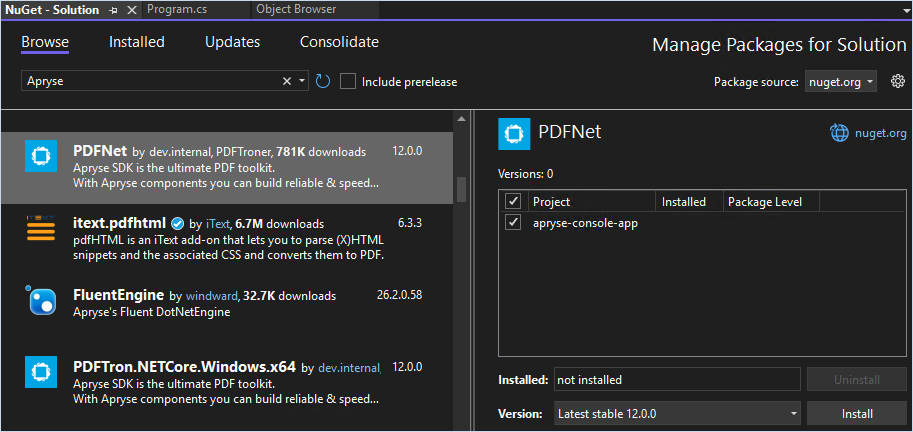
Manage NuGet Packages dialog in Visual Studio with PDFTron.NetFramework.x64 installation options.
Manage NuGet Packages dialog in Visual Studio with PDFTron.NetFramework.x64 installation options.
using System;
// Most commonly used namespaces for Apryse SDK.
using pdftron;
using pdftron.Common;
using pdftron.PDF;
using pdftron.SDF;
namespace myApp
{
    class Program
    {
        // Load appropriate PDFNet libraries at runtime
        // Automatically load 32-bit or 64-bit binary for app's architecture
        private static pdftron.PDFNetLoader pdfNetLoader = pdftron.PDFNetLoader.Instance();
        static void Main(string[] args)
        {
            // Initialize PDFNet before using any Apryse related
            // classes and methods (some exceptions can be found in API)
            PDFNet.Initialize("visitor.claims.serverKey || "YOUR_LICENSE_KEY"");
            // Using PDFNet related classes and methods, must
            // catch or throw PDFNetException
            try
            {
                using (PDFDoc doc = new PDFDoc())
                {
                    doc.InitSecurityHandler();
                    // An example of creating a new page and adding it to
                    // doc's sequence of pages
                    Page newPg = doc.PageCreate();
                    doc.PagePushBack(newPg);
                    // Save as a linearized file which is most popular
                    // and effective format for quick PDF Viewing.
                    doc.Save("output.pdf", SDFDoc.SaveOptions.e_linearized);
                    System.Console.WriteLine("Done. Results saved in output.pdf");
                }
            }
            catch (PDFNetException e)
            {
                System.Console.WriteLine(e.Message);
            }
            PDFNet.Terminate();
        }
    }
}
'Default namespace
Imports System

'Majority of Apryse SDK can be used with these namespaces
Imports pdftron
Imports pdftron.Common
Imports pdftron.SDF
Imports pdftron.PDF

Module Module1

    ' Required for AnyCPU implementation
    ' Load appropriate PDFNet libraries at runtime
    ' Automatically load 32-bit or 64-bit binary for app's architecture
    Dim pdfNetLoader As PDFNetLoader
    Sub New()
    pdfNetLoader = pdftron.PDFNetLoader.Instance()
    End Sub

    Sub Main()
        ' Initialize PDFNet before using any Apryse related
        ' classes and methods (some exceptions can be found in API)
        PDFNet.Initialize("visitor.claims.serverKey || "YOUR_LICENSE_KEY"")

        ' Using PDFNet related classes and methods,
        ' must catch or throw PDFNetException
        Try

            Using doc As PDFDoc = New PDFDoc

                ' An example of creating a new page and adding it to
                ' doc's sequence of pages
                Dim newPg As Page = doc.PageCreate()
                doc.PagePushBack(newPg)

                ' Save as a linearized file which is most popular
                ' and effective format for quick PDF Viewing.
                doc.Save("output.pdf", SDFDoc.SaveOptions.e_linearized)
                Console.WriteLine("Done. Results saved in output.pdf")
            End Using

        Catch e As PDFNetException
            Console.WriteLine(e)
        End Try
    End Sub

End Module
using System;
// Most commonly used namespaces for Apryse SDK.
using pdftron;
using pdftron.Common;
using pdftron.PDF;
using pdftron.SDF;
namespace myApp
{
    class Program
    {
       // Load appropriate PDFNet libraries at runtime
        // Automatically load 32-bit or 64-bit binary for app's architecture
        private static pdftron.PDFNetLoader pdfNetLoader = pdftron.PDFNetLoader.Instance();
        static void Main(string[] args)
        {
            // Initialize PDFNet before using any Apryse related
            // classes and methods (some exceptions can be found in API)
            PDFNet.Initialize("visitor.claims.serverKey || "YOUR_LICENSE_KEY"");
            // Using PDFNet related classes and methods, must
            // catch or throw PDFNetException
            try
            {
                using (PDFDoc doc = new PDFDoc())
                {
                    doc.InitSecurityHandler();
                    // An example of creating a new page and adding it to
                    // doc's sequence of pages
                    Page newPg = doc.PageCreate();
                    doc.PagePushBack(newPg);
                    // Save as a linearized file which is most popular
                    // and effective format for quick PDF Viewing.
                    doc.Save("output.pdf", SDFDoc.SaveOptions.e_linearized);
                    System.Console.WriteLine("Done. Results saved in output.pdf");
                }
            }
            catch (PDFNetException e)
            {
                System.Console.WriteLine(e.Message);
            }
            PDFNet.Terminate();
        }
    }
}
'Default namespace
Imports System

'Majority of Apryse SDK can be used with these namespaces
Imports pdftron
Imports pdftron.Common
Imports pdftron.SDF
Imports pdftron.PDF

Module Module1

    ' Required for AnyCPU implementation
    ' Load appropriate PDFNet libraries at runtime
    ' Automatically load 32-bit or 64-bit binary for app's architecture
    Dim pdfNetLoader As PDFNetLoader
    Sub New()
    pdfNetLoader = pdftron.PDFNetLoader.Instance()
    End Sub

    Sub Main()
        ' Initialize PDFNet before using any Apryse related
        ' classes and methods (some exceptions can be found in API)
        PDFNet.Initialize("visitor.claims.serverKey || "YOUR_LICENSE_KEY"")

        ' Using PDFNet related classes and methods,
        ' must catch or throw PDFNetException
        Try

            Using doc As PDFDoc = New PDFDoc

                ' An example of creating a new page and adding it to
                ' doc's sequence of pages
                Dim newPg As Page = doc.PageCreate()
                doc.PagePushBack(newPg)

                ' Save as a linearized file which is most popular
                ' and effective format for quick PDF Viewing.
                doc.Save("output.pdf", SDFDoc.SaveOptions.e_linearized)
                Console.WriteLine("Done. Results saved in output.pdf")
            End Using

        Catch e As PDFNetException
            Console.WriteLine(e)
        End Try
    End Sub

End Module