> For the complete documentation index, see [llms.txt](https://docs.apryse.com/llms.txt). Markdown versions of documentation pages are available by appending `.md` to page URLs; this page is available as [Markdown](https://docs.apryse.com/web/digital-signature/interacting-with-signature-field.md).
# Work with PDF signature fields using JavaScript
Learn how to add approval signature in PDF using JavaScript. Here you can find full code samples showing how with the digital signature API you can sign or certify documents.The Apryse Web SDK streaml
{% hint style="info" %}
**Requirements**
The following packages are required to use these features in production. Trial keys have unlimited access to all features.
Package: Digital SignatureLive demo
{% endhint %}
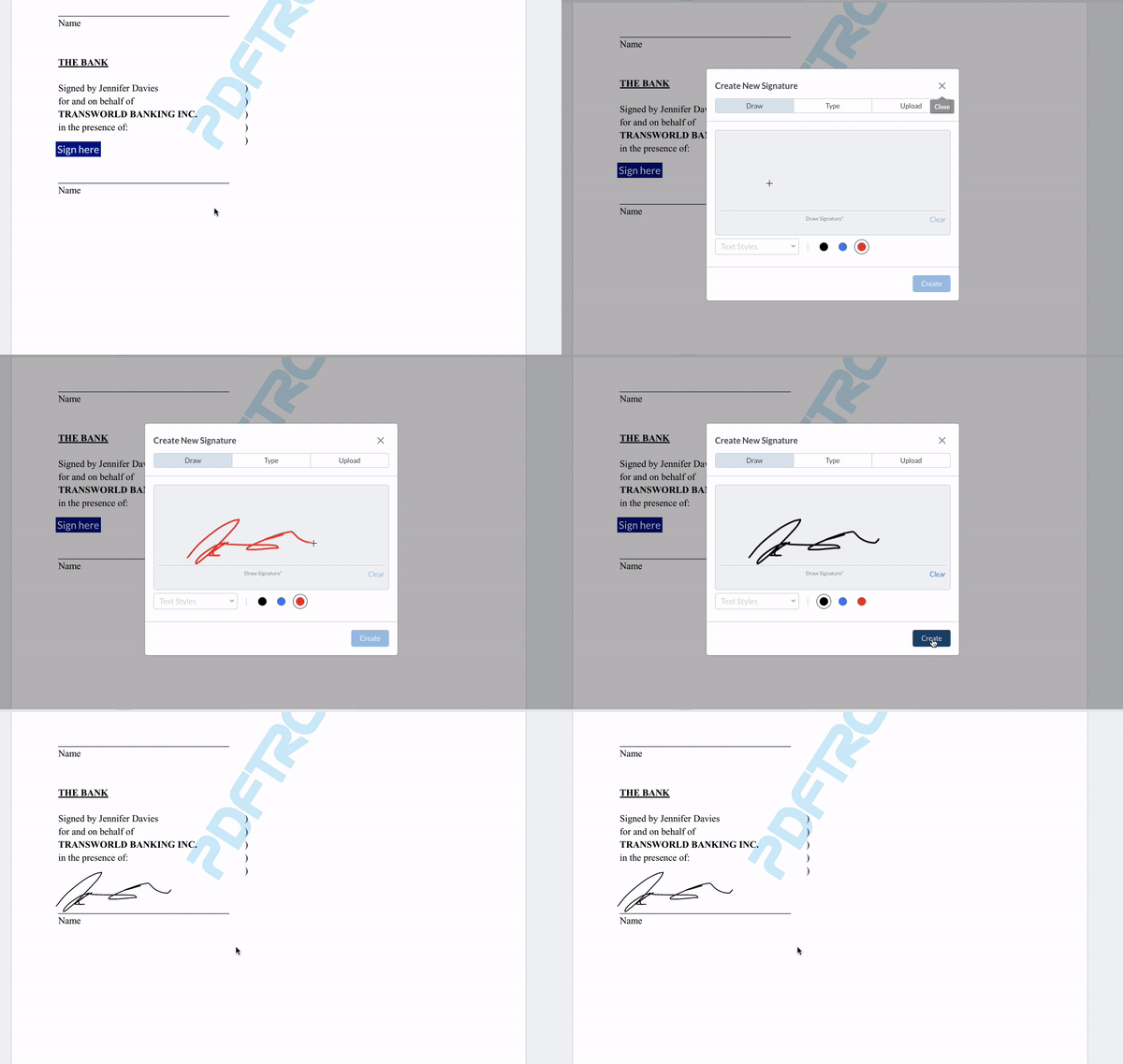
Signature fields will show the text **Sign here**. Clicking the text opens the signature dialog or signature overlay, depending on whether you have saved signatures. After you create or select a signature, it will scale to the size of the signature field and be added directly to it, instead of showing a signature preview.
## Sign a signature field
### Sign a field on click
If you want to place a signature on click of a **Sign Here** field, you can [sign](https://sdk.apryse.com/api/web/Core.Annotations.SignatureWidgetAnnotation.html#sign__anchor) it by listening to the `locationSelected` event. The sign method takes a freehand annotation or a stamp annotation as a parameter. The following example shows how we can use a stamp annotation to sign a signature widget.
{% tabs %}
{% tab title="JavaScript (SDK v8.0+)" %}
{% code lineNumbers="true" %}
```js
WebViewer({
...
css: 'path/to/stylesheet.css'
}).then(instance => {
const { Tools, documentViewer, Annotations } = instance.Core;
// Disable the signature modal as we will be signing on click
instance.UI.disableElements(['signatureModal']);
const signatureTool = documentViewer.getTool('AnnotationCreateSignature');
signatureTool.addEventListener('locationSelected', async (_, widget) => {
const signatureImage = 'data:image/png;base64....'// Base 64 string of the image
const stamp = new Annotations.StampAnnotation();
stamp.PageNumber = 1;
stamp.X = 100;
stamp.Y = 250;
stamp.Width = 275;
stamp.Height = 40;
await stamp.setImageData(signatureImage);
// sign method takes a stamp or freehand annotation
widget.sign(stamp);
});
});
```
{% endcode %}
{% endtab %}
{% tab title="JavaScript (SDK v6.0+)" %}
{% code lineNumbers="true" %}
```js
WebViewer({
...
css: 'path/to/stylesheet.css'
}).then(instance => {
const { Tools, docViewer } = instance;
const signatureTool = docViewer.getTool('AnnotationCreateSignature');
signatureTool.on('locationSelected', async () => {
await signatureTool.setSignature(base64Image);
signatureTool.addSignature();
instance.closeElements(['signatureModal']);
});
});
```
{% endcode %}
{% endtab %}
{% endtabs %}
### Sign a field programmatically
Starting in WebViewer 8.10, signature fields can be signed programmatically using the [signSignatureWidget API](https://sdk.apryse.com/api/web/UI.html#.signSignatureWidget__anchor). This adds a signature to the field using whichever signing mode you use.
{% tabs %}
{% tab title="JavaScript" %}
{% code lineNumbers="true" %}
```js
instance.UI.signSignatureWidget(signatureWidget);
```
{% endcode %}
{% endtab %}
{% endtabs %}
### Choose annotation or appearance signing
Starting in WebViewer 11, signature fields will be signed by appearance by default. Signing by annotation will still be supported. Signing with an annotation is used primarily for e-signatures that have no additional identifiable information about the creator other than an author field, which can be altered. Signing with a signature appearance, on the other hand, can be used for [digital signatures](/web/digital-signature/signature.md#digital-signature-vs-e-signature), as they don't create additional annotations and cause invalid digital signature validation.
You can change signing modes using the Signature Tool [setSigningMode](https://sdk.apryse.com/api/web/Core.Tools.SignatureCreateTool.html#setSigningMode__anchor) API.
{% tabs %}
{% tab title="JavaScript" %}
{% code lineNumbers="true" %}
```js
WebViewer(...).then(instance => {
const tool = instance.Core.documentViewer.getTool('AnnotationCreateSignature');
tool.setSigningMode(instance.Core.Tools.SignatureCreateTool.SigningModes.APPEARANCE);
})
```
{% endcode %}
{% endtab %}
{% endtabs %}
### Apply initials to signature fields
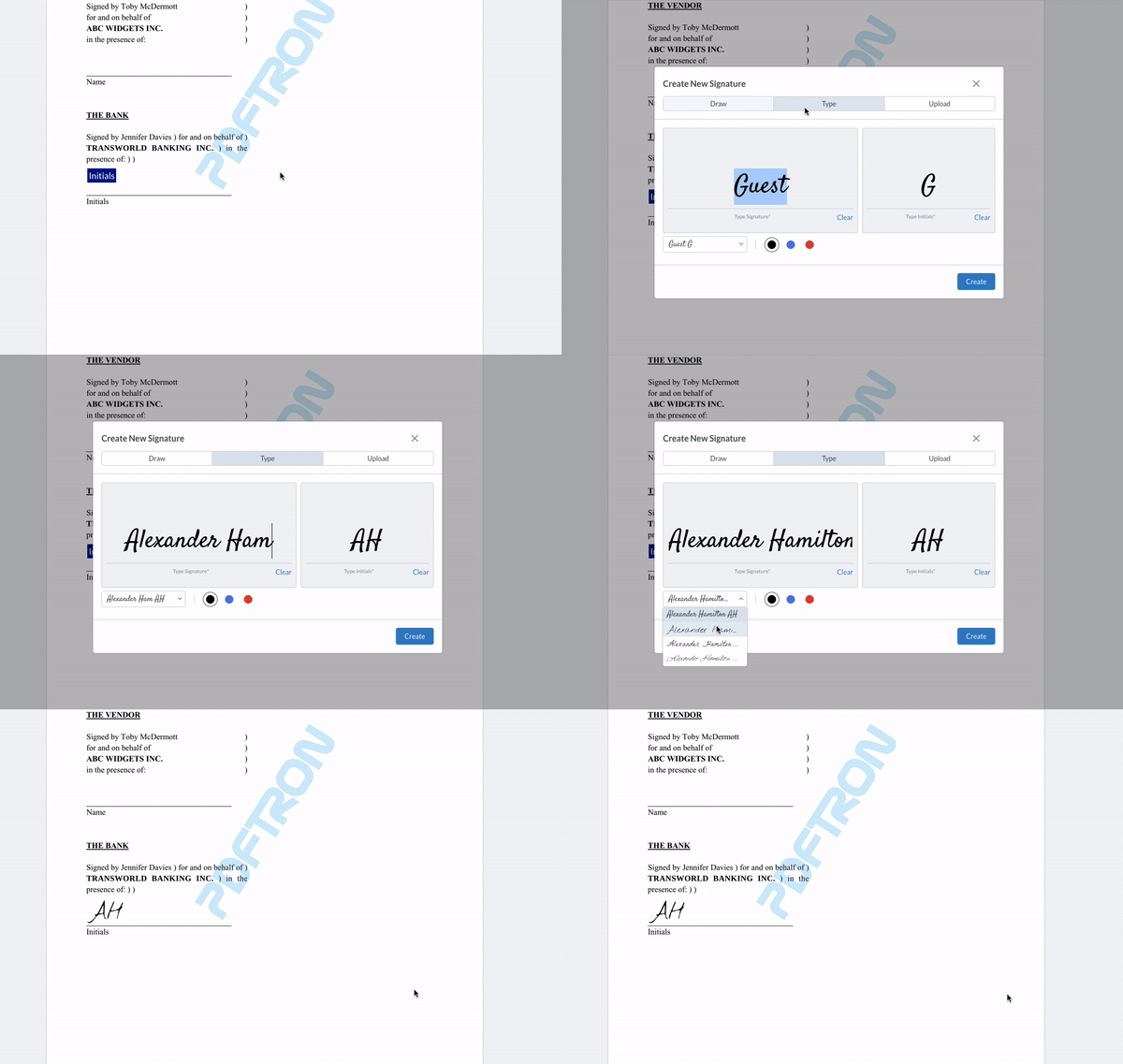
Starting in WebViewer 8.9, signature fields can accept either initials or signatures. For more details on how to set the signature field to accept one or the other, refer to [this guide](/web/forms/create-fields.md#creating-a-signature-widget-to-accept-initials). Please note that the initials feature must be enabled for this to display in the viewer. For a sample, refer to [this guide](/web/digital-signature/signature-tool.md#initials-as-signature).
If a field is set to accept initials, the initials set by the user in the signature modal will be added to the signature field.
## Check a signature field's status
### Verify a field is cryptographically signed
Starting in WebViewer 12.2, the [SignatureWidgetAnnotation.hasCryptographicSignature](https://sdk.apryse.com/api/web/Core.Annotations.SignatureWidgetAnnotation.html#hasCryptographicSignature__anchor) API can be used to check if signatures have been cryptographically signed. This API is intended to replace [isSignedDigitally](#verify-a-field-is-digitally-signed).
{% tabs %}
{% tab title="JavaScript (SDK v12.2+)" %}
{% code lineNumbers="true" %}
```js
WebViewer(...)
.then(instance => {
const { documentViewer, annotationManager, Annotations } = instance.Core;
documentViewer.addEventListener('annotationsLoaded', () => {
const signatureWidgets = annotationManager.getAnnotationsList().filter(
annot => annot instanceof Annotations.SignatureWidgetAnnotation
);
signatureWidgets.forEach(async (signatureWidget) => {
const fieldName = signatureWidget.getFieldName();
const isSigned = await signatureWidget.hasCryptographicSignature();
if (isSigned) {
console.log(`${fieldName} is cryptographically signed.`);
}
});
});
});
```
{% endcode %}
{% endtab %}
{% endtabs %}
### Verify a field is digitally signed
{% hint style="info" %}
**Info:** `isSignedDigitally` was deprecated in WebViewer 12. Use [hasCryptographicSignature](#verify-a-field-is-cryptographically-signed) instead.
{% endhint %}
`isSignedDigitally` returns a promise that will be resolved with a boolean value indicating if the signature field is signed digitally.
{% tabs %}
{% tab title="JavaScript (SDK v8.0+)" %}
{% code lineNumbers="true" %}
```js
WebViewer(...)
.then(instance => {
const { documentViewer, annotationManager } = instance.Core;
documentViewer.addEventListener('annotationsLoaded', () => {
const signatureWidgetAnnots = annotationManager.getAnnotationsList().filter(
annot => annot instanceof Annotations.SignatureWidgetAnnotation
);
signatureWidgetAnnots.forEach(annot => {
annot.isSignedDigitally().then(isSigned => {
if (isSigned) {
// if this signature field is signed digitally
} else {
// if this signature field is not signed digitally
}
});
});
});
});
```
{% endcode %}
{% endtab %}
{% tab title="JavaScript (SDK v6.0+)" %}
{% code lineNumbers="true" %}
```js
WebViewer(...)
.then(instance => {
const { docViewer, annotManager } = instance;
docViewer.on('annotationsLoaded', () => {
const signatureWidgetAnnots = annotManager.getAnnotationsList().filter(
annot => annot instanceof Annotations.SignatureWidgetAnnotation
);
signatureWidgetAnnots.forEach(annot => {
annot.isSignedDigitally().then(isSigned => {
if (isSigned) {
// if this signature field is signed initially
} else {
// if this signature field is not signed initially
}
});
});
});
});
```
{% endcode %}
{% endtab %}
{% endtabs %}
### Verify a field is signed by appearance
Starting in WebViewer 8.12, you can check if a widget is signed by an appearance using the [isSignedByAppearance API](https://sdk.apryse.com/api/web/Core.Annotations.SignatureWidgetAnnotation.html#isSignedByAppearance__anchor).
{% tabs %}
{% tab title="JavaScript" %}
{% code lineNumbers="true" %}
```js
signatureWidgetAnnots.forEach(annot => {
if (annot.isSignedByAppearance()) {
// if this signature field is signed by an appearance
} else {
// if this signature field is not signed by an appearance
}
});
```
{% endcode %}
{% endtab %}
{% endtabs %}
### Get the annotation used to sign a field
When signing a signature widget with an annotation, after the signature annotation (drawing, typing, or image) is added to a signature widget, you can access that annotation through the `annot` property of the signature widget object.
{% tabs %}
{% tab title="JavaScript" %}
{% code lineNumbers="true" %}
```js
signatureWidgetAnnots.forEach(signatureWidgetAnnot => {
console.log(signatureWidgetAnnot.annot);
});
```
{% endcode %}
{% endtab %}
{% endtabs %}
## Customize the Sign here element
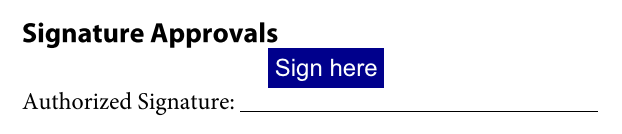
`createSignHereElement` is a function that creates the **Sign here** element in the annotation field. This function returns a DOM element that will be appended to the field. You can replace this with your own function.
By default, the sign here element has white text and a dark blue background.
You can change the background to red by modifying the returned DOM element directly.
{% tabs %}
{% tab title="JavaScript" %}
{% code lineNumbers="true" %}
```js
const createSignHereElement = Annotations.SignatureWidgetAnnotation.prototype.createSignHereElement;
Annotations.SignatureWidgetAnnotation.prototype.createSignHereElement = function() {
// signHereElement is the default one with dark blue background
const signHereElement = createSignHereElement.apply(this, arguments);
signHereElement.style.background = 'red';
return signHereElement;
}
```
{% endcode %}
{% endtab %}
{% endtabs %}
If you want to create your own sign here element, say a div element with inline SVG, you can assign your function to `createSignHereElement`. The following example uses inline SVG.
{% tabs %}
{% tab title="JavaScript" %}
{% code lineNumbers="true" %}
```js
Annotations.SignatureWidgetAnnotation.prototype.createSignHereElement = function() {
const div = document.createElement('div');
div.style.width = '100%';
div.style.height = '100%';
div.style.cursor = 'pointer';
const inlineSvg = '';
div.innerHTML = inlineSvg;
return div;
}
```
{% endcode %}
{% endtab %}
{% endtabs %}
## Lock fields after signing
You can add a lock when creating a signature field. The lock is triggered when the signature field is signed, and will be applied to the specified target fields. This supports a workflow where you can lock all form fields as read-only after a signature field has been signed to prevent further changes.
{% tabs %}
{% tab title="JavaScript" %}
{% code lineNumbers="true" %}
```js
WebViewer({
// ...Config options
}, document.getElementById('viewer')).then(async instance => {
const { Annotations, documentViewer } = instance.Core;
const annotationManager = documentViewer.getAnnotationManager();
const fieldManager = annotationManager.getFieldManager();
await new Promise((resolve) => {
documentViewer.addEventListener('annotationsLoaded', () => resolve(), { once: true });
});
const lockScenarios = [
{
name: 'sig-lock-all',
lock: { action: 'all' }, // Aliases: 'e_lock_all' and 'lock_all'
note: 'Locks every field after signing this widget',
label: 'Sign: lock ALL fields',
},
{
name: 'sig-lock-include-string',
lock: { action: 'include', fields: 'sig-target-a,sig-target-b' },
note: 'Locks only listed targets from a comma-delimited string',
label: 'Sign: lock targets A+B',
},
{
name: 'sig-lock-exclude-string',
lock: { action: 'exclude', fields: 'sig-target-a' },
note: 'Locks everything except listed target from string',
label: 'Sign: lock all except A',
},
];
const baseTargetFields = [
'sig-target-a',
'sig-target-b',
'sig-target-c',
'sig-target-d',
];
const addSignatureField = (name, x, y, lock, label) => {
const field = new Annotations.Forms.Field(name, { type: 'Sig' });
fieldManager.addField(field);
const widget = new Annotations.SignatureWidgetAnnotation(field, {
appearance: '_DEFAULT',
appearances: { _DEFAULT: { Normal: { offset: {} } } },
lock,
});
if (label) {
const defaultCreateSignHereElement = widget.createSignHereElement.bind(widget);
widget.createSignHereElement = function (signatureTool) {
const signHereEl = defaultCreateSignHereElement(signatureTool);
signHereEl.textContent = label;
signHereEl.style.fontSize = '9px';
signHereEl.style.textAlign = 'center';
signHereEl.style.lineHeight = '1.2';
return signHereEl;
};
}
widget.PageNumber = 1;
widget.X = x;
widget.Y = y;
widget.Width = 220;
widget.Height = 32;
annotationManager.addAnnotations([widget]);
};
baseTargetFields.forEach((name, index) => {
const columnX = index < 5 ? 40 : 300;
const rowIndex = index < 5 ? index : index - 5;
addSignatureField(name, columnX, 160 + rowIndex * 42, undefined, `Target/Exempt: ${name}`);
});
lockScenarios.forEach((scenario, index) => {
const columnX = index < 4 ? 40 : 300;
const rowIndex = index < 4 ? index : index - 4;
addSignatureField(scenario.name, columnX, 430 + rowIndex * 42, scenario.lock, scenario.label);
});
});
```
{% endcode %}
**Related links**
* [SignatureWidgetAnnotation](https://sdk.apryse.com/api/web/Core.Annotations.SignatureWidgetAnnotation.html)
{% endtab %}
{% endtabs %}
## Clear a signature from a field
Starting in WebViewer 8.12, signature fields can be cleared using the [clearSignature API](https://sdk.apryse.com/api/web/Core.Annotations.SignatureWidgetAnnotation.html#clearSignature__anchor). This will remove the signature, whether it is an appearance signature or annotation signature, from the field and then redraw it as unsigned.
{% tabs %}
{% tab title="JavaScript" %}
{% code lineNumbers="true" %}
```js
signatureWidgetAnnot.clearSignature(annotationManager);
```
{% endcode %}
{% endtab %}
{% endtabs %}
---
# Agent Instructions
This documentation is published with GitBook. GitBook is the documentation platform designed so that both humans and AI agents can read, navigate, and reason over technical content effectively. Learn more at gitbook.com.
## Querying This Documentation
If you need additional information that is not directly available in this page, you can query the documentation by asking a question.
Perform an HTTP GET request on the following URL with the `ask` and `goal` query parameters:
```
GET https://docs.apryse.com/web/digital-signature/interacting-with-signature-field.md?ask=&goal=
```
`ask` is the immediate question: it should be specific, self-contained, and written in natural language.
`goal` is what the user is ultimately trying to achieve, the reason they need the answer. Sharing it helps GitBook give you a better, more relevant answer. A goal is most helpful when it describes the outcome the user wants rather than restating the question. For example, with `ask=how do I create an API token`, a goal like `automate deployments from our CI pipeline` lets GitBook tailor the answer to that use case.
The response will contain a direct answer to the question and relevant excerpts and sources from the documentation.
Use this mechanism when the answer is not explicitly present in the current page, you need clarification or additional context, or you want to retrieve related documentation sections.