> For the complete documentation index, see [llms.txt](https://docs.apryse.com/llms.txt). Markdown versions of documentation pages are available by appending `.md` to page URLs; this page is available as [Markdown](https://docs.apryse.com/web/digital-signature/signature-tool.md).
# Use the digital signature tool in WebViewer
Enhance document security with the Signature tool in WebViewer. Easily add ink, text, or image signatures to your files. Preview and choose from various signature types before applying them. The Aprys
{% hint style="info" %}
**Requirements**
The following packages are required to use these features in production. Trial keys have unlimited access to all features.
Package: Digital SignatureLive demo
{% endhint %}
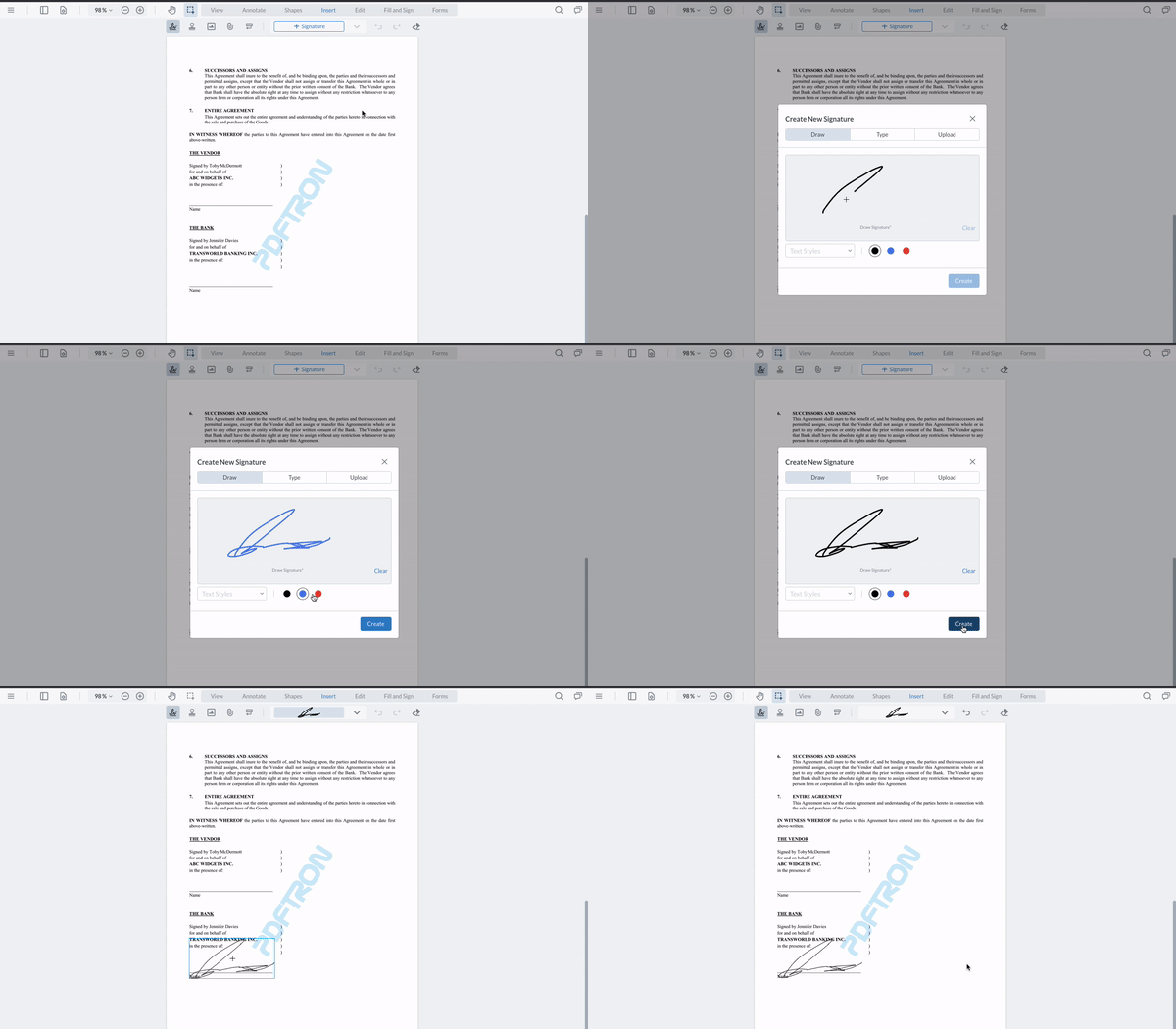
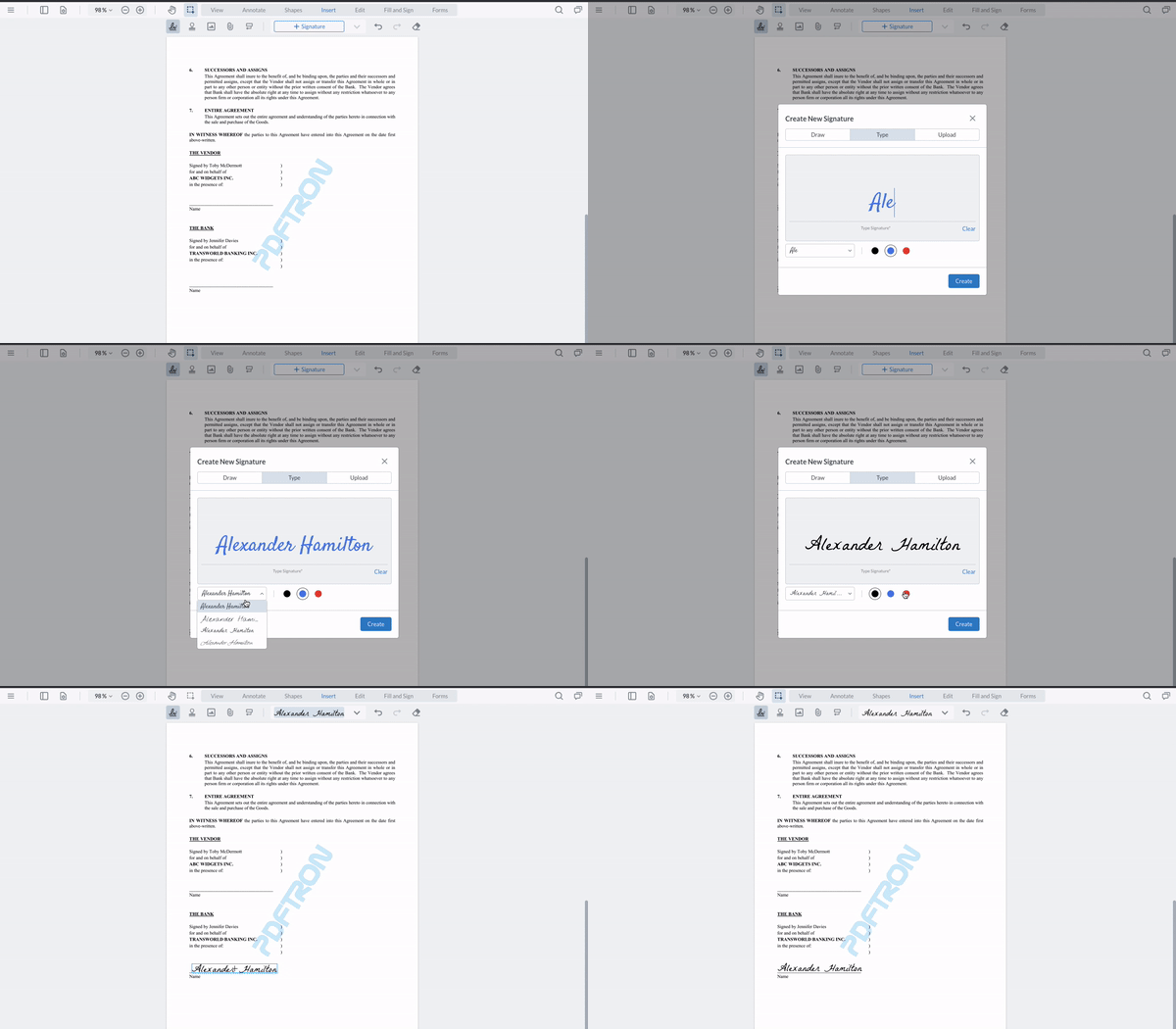
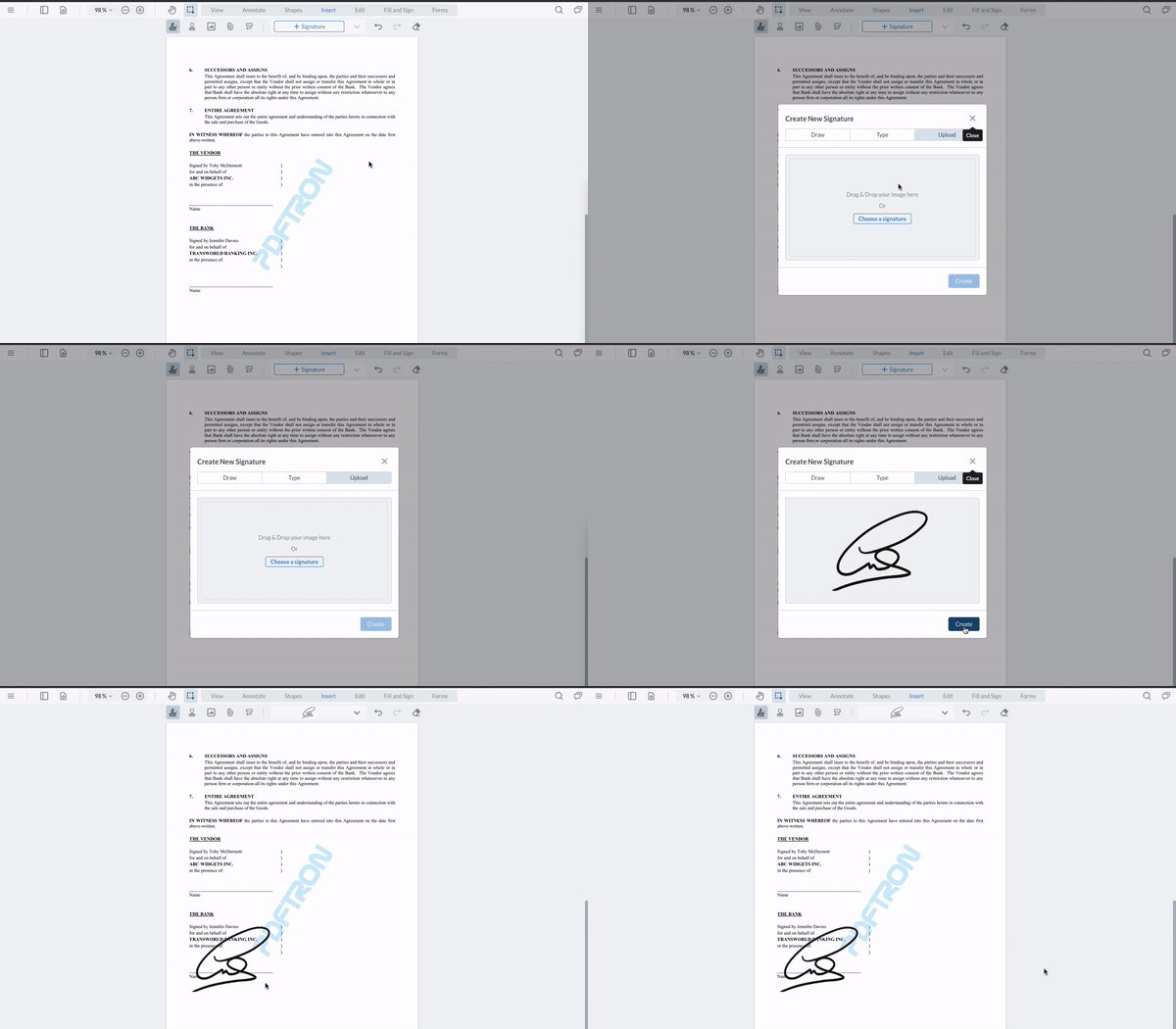
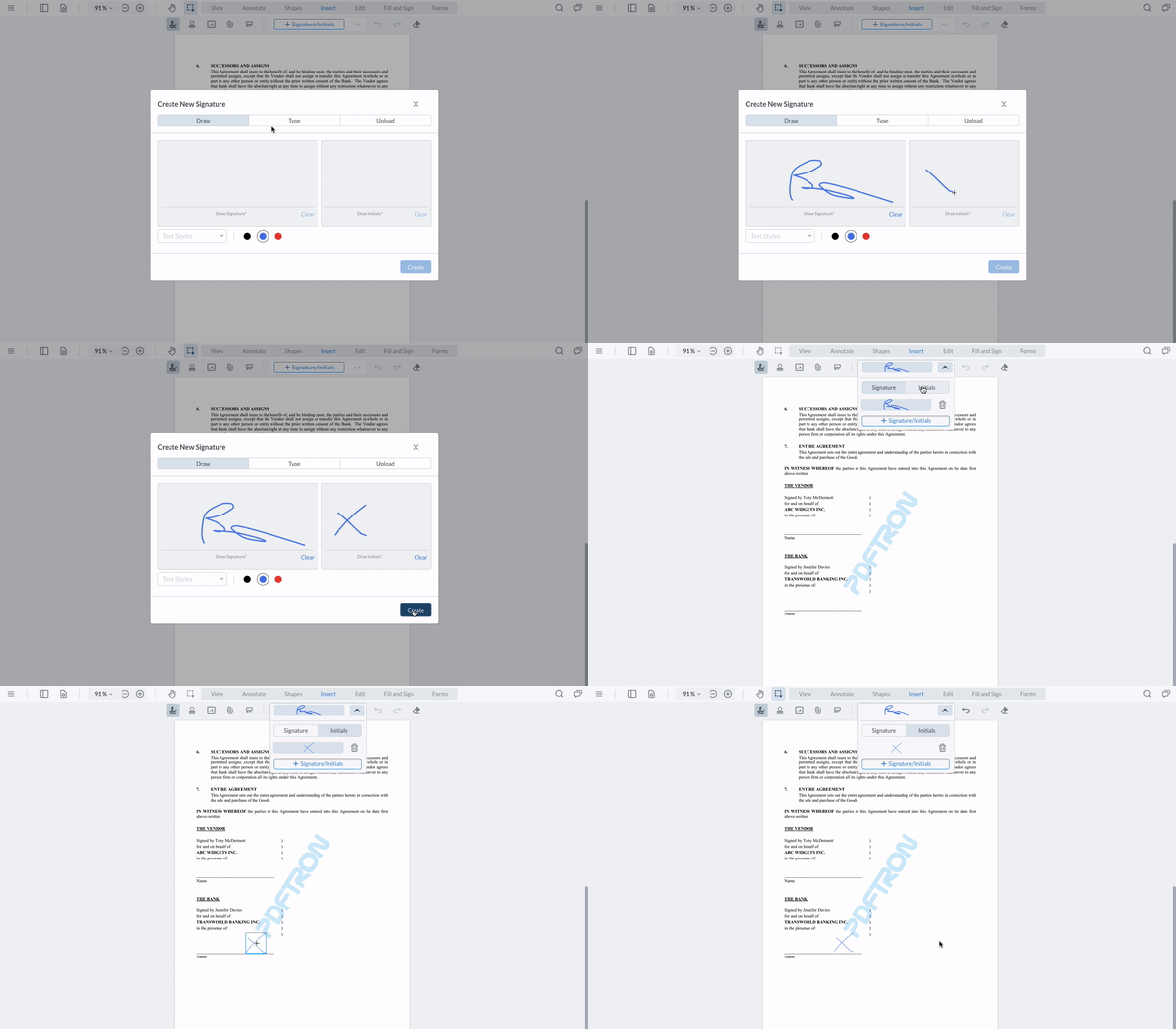
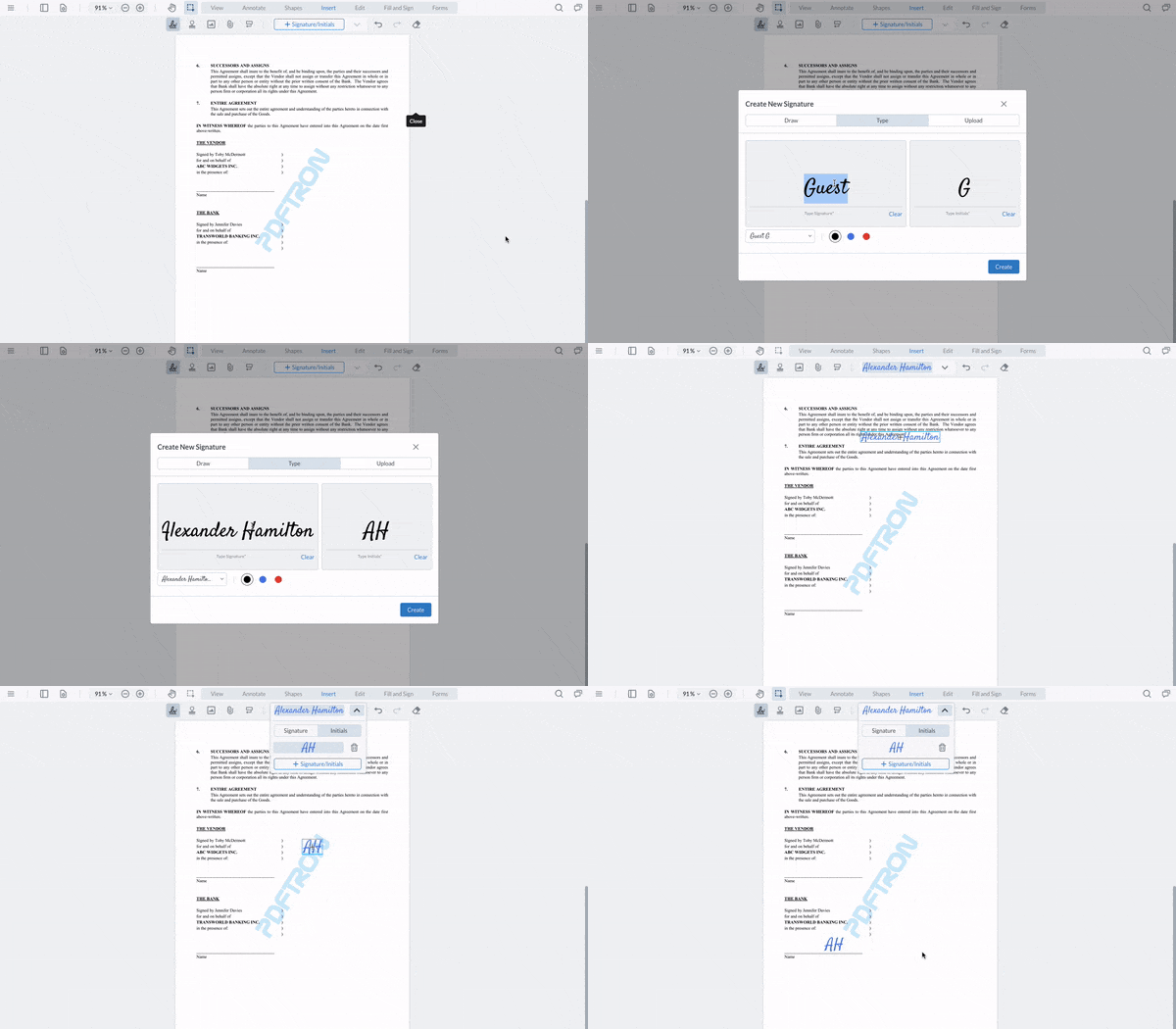
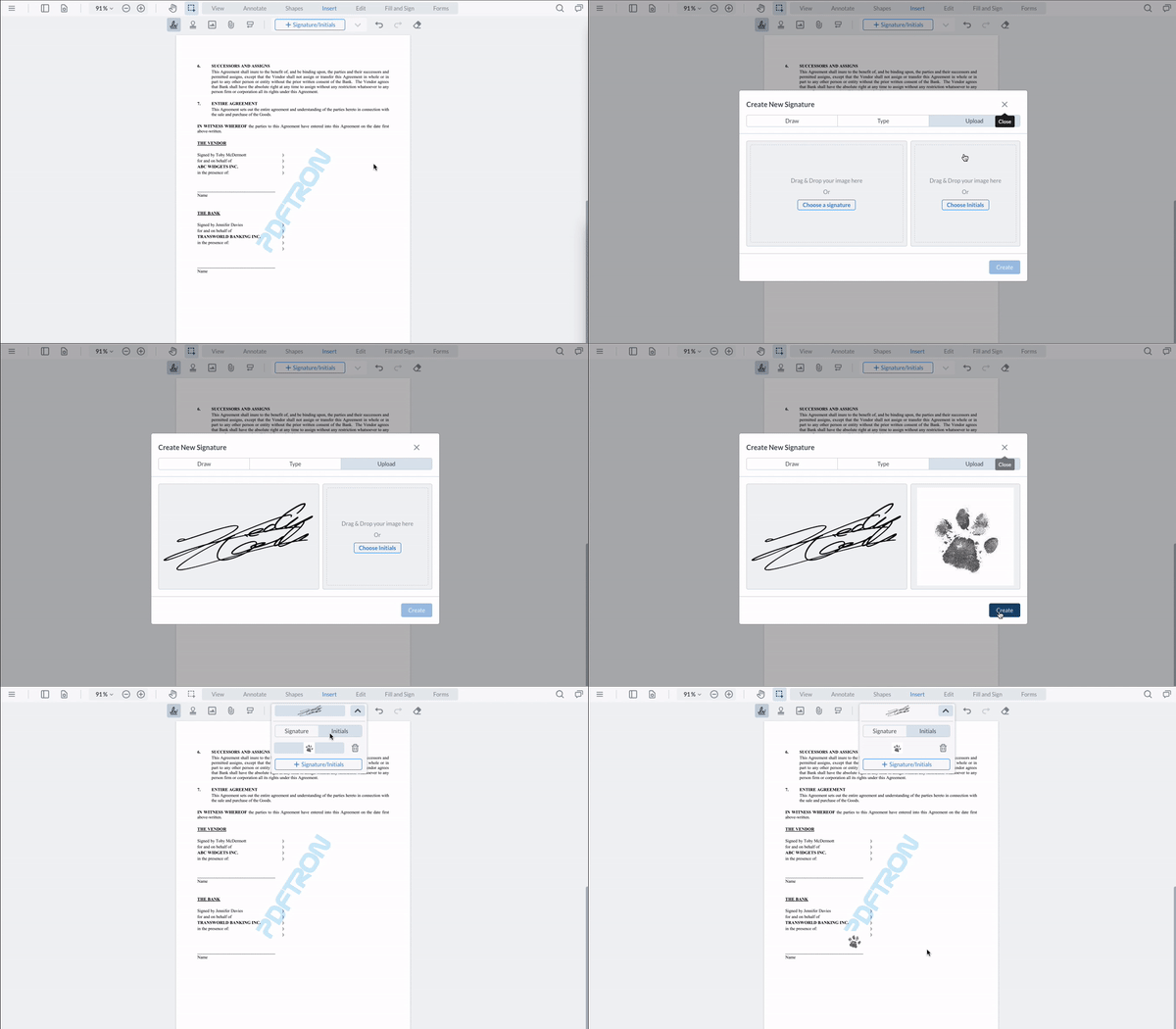
In the Insert toolbar group, select the signature tool, then click the **+Signature** button to open the signature modal. Here, users can choose a signature type and preview it before adding it to the document.
Signatures can be one of three types:
* Ink Signatures, where users can choose from one of three colors.
* Text Signatures, where users can choose from one of three colors and different fonts.
* Image Signatures, where users can upload a signature file by dragging and dropping a file or using the file explorer.
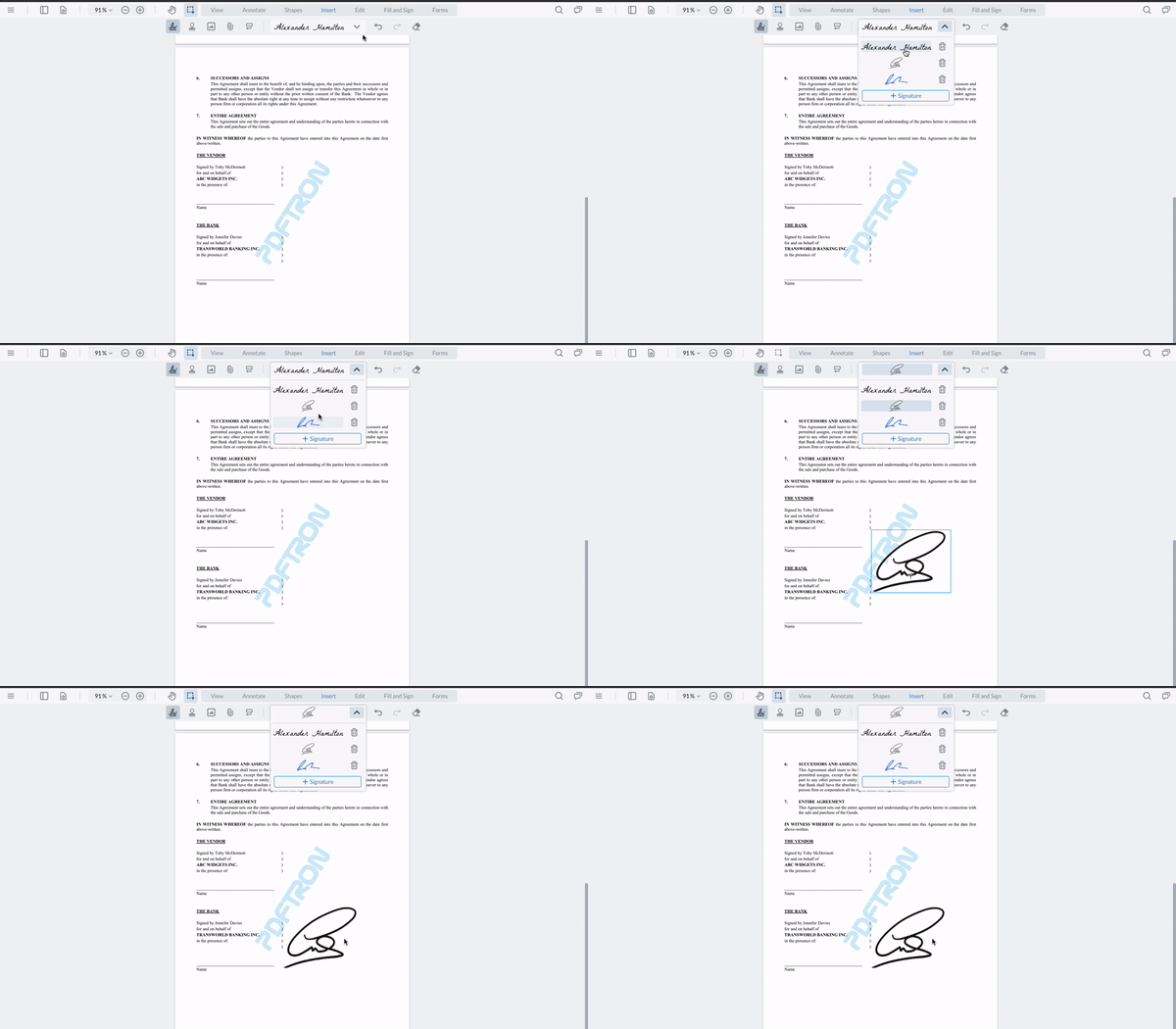
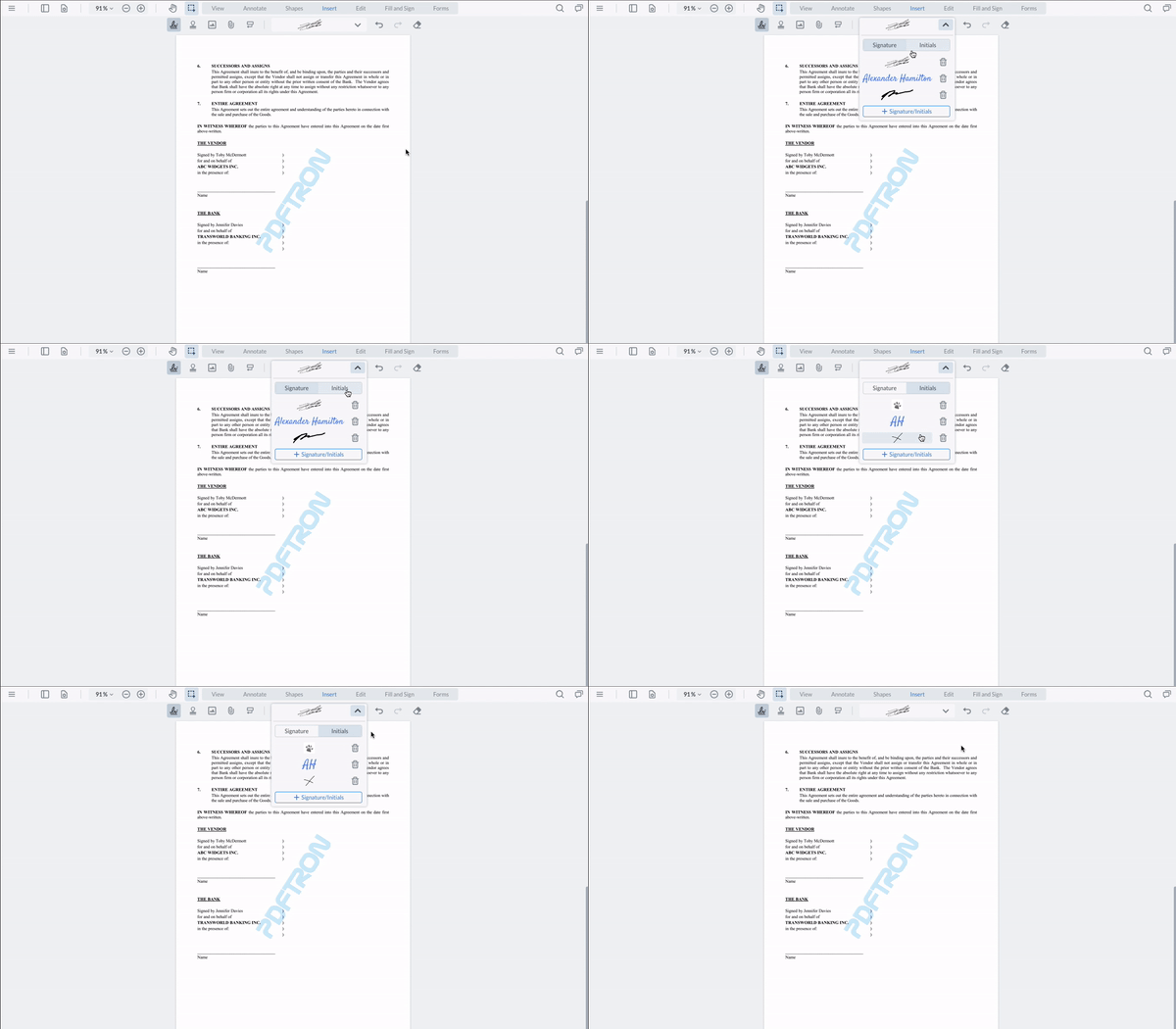
If you have saved signatures, clicking the signature button opens an overlay where you can choose and apply them directly.
## Initials as signature
Starting in WebViewer 8.9, the Signature tool supports an additional mode for initials as signatures. This new feature is disabled by default and can be enabled using the following:
{% tabs %}
{% tab title="JavaScript" %}
{% code lineNumbers="true" %}
```js
WebViewer({
...
}).then(instance => {
instance.UI.enableFeatures([instance.UI.Feature.Initials]);
});
```
{% endcode %}
{% endtab %}
{% endtabs %}
If this feature is enabled, the signature modal will also require initials to be added.
* Ink Signature and Initials
* Text Signature and Initials
* Image Signature and Initials
Once created, the signature and initials are saved in the signatures overlay, allowing users to choose whether to apply a signature or initials.
## Import existing signatures
If you already have a signature stored for the user, you can [import](https://sdk.apryse.com/api/web/Core.Tools.SignatureCreateTool.html#importSignatures) it into the signature tool:
{% tabs %}
{% tab title="JavaScript (SDK v8.0+)" %}
{% code lineNumbers="true" %}
```js
WebViewer({
...
}).then(instance => {
const { documentViewer } = instance.Core;
const signatureTool = documentViewer.getTool('AnnotationCreateSignature');
documentViewer.addEventListener('documentLoaded', () => {
signatureTool.importSignatures([base64Image]);
});
});
```
{% endcode %}
{% endtab %}
{% tab title="JavaScript (SDK v6.0+)" %}
{% code lineNumbers="true" %}
```js
WebViewer({
...
}).then(instance => {
const { docViewer } = instance;
const signatureTool = docViewer.getTool('AnnotationCreateSignature');
docViewer.on('documentLoaded', () => {
signatureTool.importSignatures([base64Image]);
});
});
```
{% endcode %}
{% endtab %}
{% endtabs %}
You can also save the signature by calling [exportSignatures](https://sdk.apryse.com/api/web/Core.Tools.SignatureCreateTool.html#exportSignatures__anchor).
## Import existing initials
Starting in WebViewer 8.9, you can also import and export a user's initials.
You can [import](https://sdk.apryse.com/api/web/Core.Tools.SignatureCreateTool.html#importInitials) them into the signature tool, which will make them available in the saved signatures overlay. You must have this feature enabled in order to view the saved initials in the viewer.
{% tabs %}
{% tab title="JavaScript" %}
{% code lineNumbers="true" %}
```js
WebViewer({
...
}).then(instance => {
const { documentViewer } = instance.Core;
const signatureTool = documentViewer.getTool('AnnotationCreateSignature');
documentViewer.addEventListener('documentLoaded', () => {
signatureTool.importInitials([base64Image]);
});
});
```
{% endcode %}
{% endtab %}
{% endtabs %}
You can also save them by calling [exportInitials](https://sdk.apryse.com/api/web/Core.Tools.SignatureCreateTool.html#exportInitials__anchor).
## Add custom fonts
By default, `GreatVibes` is the only font that is available in the `Type` tab. More fonts can be added using the [setSignatureFonts](https://sdk.apryse.com/api/web/UI.html#.setSignatureFonts__anchor) API. The following is an example that adds [Tangerine](https://fonts.google.com/specimen/Tangerine/) from Google Fonts to the tab.
{% hint style="info" %}
Google recommends importing fonts in your index.html rather than via CSS for performance reasons. You can read more about Google's recommended methods here:
{% endhint %}
Here are two ways to import your fonts in `index.html`:
{% tabs %}
{% tab title="CSS" %}
{% code lineNumbers="true" %}
```css
/* inside of index.html */
```
{% endcode %}
{% endtab %}
{% endtabs %}
Or
{% tabs %}
{% tab title="CSS" %}
{% code lineNumbers="true" %}
```css
/* inside index.html */
```
{% endcode %}
{% endtab %}
{% endtabs %}
{% tabs %}
{% tab title="JavaScript (SDK v8.0+)" %}
{% code lineNumbers="true" %}
```js
WebViewer({
...
css: 'path/to/stylesheet.css'
}).then(instance => {
instance.UI.setSignatureFonts(currentFonts => [
...currentFonts,
'Tangerine',
]);
});
```
{% endcode %}
{% endtab %}
{% tab title="JavaScript (SDK v6.0+)" %}
{% code lineNumbers="true" %}
```js
WebViewer({
...
css: 'path/to/stylesheet.css'
}).then(instance => {
instance.setSignatureFonts(currentFonts => [
...currentFonts,
'Tangerine',
]);
});
```
{% endcode %}
{% endtab %}
{% endtabs %}
## Export a signature to blob storage
If you created a signature and want to store it for later use, you can export it as a blob and save it to an external storage solution. If you are on WebViewer 8.9 and have initials enabled, the following code will also save initials as blobs for storage.
{% tabs %}
{% tab title="JavaScript (SDK v8.0+)" %}
{% code lineNumbers="true" %}
```js
WebViewer({
...
}).then(instance => {
const { annotationManager, documentViewer } = instance.Core;
documentViewer.addEventListener('annotationsLoaded', async () => {
annotationManager.addEventListener('annotationSelected', async (annotationList) => {
annotationList.forEach(annotation => {
if (annotation.Subject === "Signature")
extractAnnotationSignature(annotation, documentViewer);
})
})
});
});
```
{% endcode %}
{% endtab %}
{% tab title="JavaScript (SDK v6.0+)" %}
{% code lineNumbers="true" %}
```js
WebViewer({
...
}).then(instance => {
const { annotManager, docViewer } = instance;
docViewer.on('annotationsLoaded', async () => {
annotManager.on('annotationSelected', async (annotationList) => {
annotationList.forEach(annotation => {
if (annotation.Subject === "Signature")
extractAnnotationSignature(annotation, docViewer);
})
})
});
});
```
{% endcode %}
{% endtab %}
{% endtabs %}
Sample function to export the signature:
{% tabs %}
{% tab title="JavaScript" %}
{% code lineNumbers="true" %}
```js
async function extractAnnotationSignature(annotation, docViewer) {
// Create a new Canvas to draw the Annotation on
const canvas = document.createElement('canvas');
// Reference the annotation from the Document
const pageMatrix = docViewer.getDocument().getPageMatrix(annotation.PageNumber);
// Set the height & width of the canvas to match the annotation
canvas.height = annotation.Height;
canvas.width = annotation.Width;
const ctx = canvas.getContext('2d');
// Translate the Annotation to the top-left corner of the canvas, i.e., (0, 0)
ctx.translate(-annotation.X, -annotation.Y);
// Draw the Annotation onto the Canvas
annotation.draw(ctx, pageMatrix);
// Convert the Canvas to a Blob Object for Upload
canvas.toBlob((blob) => {
// Call your Blob Storage Upload Function
});
}
```
{% endcode %}
{% endtab %}
{% endtabs %}
## Add a disclaimer to the signature modal
Starting in WebViewer 12.2, you can add a disclaimer to the signature modal, for example, to cover confidentiality or legal terms. The disclaimer is off by default. To show it, call [UI.enableSignatureDisclaimer](https://sdk.apryse.com/api/web/UI.html#.enableSignatureDisclaimer__anchor). To hide it again, call [UI.disableSignatureDisclaimer](https://sdk.apryse.com/api/web/UI.html#.disableSignatureDisclaimer__anchor). You can also replace the default text with your own by using [UI.setTranslations](https://sdk.apryse.com/api/web/UI.html#.setTranslations__anchor).
{% tabs %}
{% tab title="JavaScript" %}
{% code lineNumbers="true" %}
```js
WebViewer({
// ...Config options
}).then(instance => {
const { UI } = instance;
UI.enableSignatureDisclaimer();
UI.setTranslations('en', {
'message.signatureDisclaimer': "New legal message"
});
UI.disableSignatureDisclaimer();
});
```
{% endcode %}
**Related links**
* [enableSignatureDisclaimer](https://sdk.apryse.com/api/web/UI.html#.enableSignatureDisclaimer)
* [disableSignatureDisclaimer](https://sdk.apryse.com/api/web/UI.html#.disableSignatureDisclaimer)
* [setTranslations](https://sdk.apryse.com/api/web/UI.html#.setTranslations)
{% endtab %}
{% endtabs %}
The following screenshot shows the signature modal with the default disclaimer text. If you set a custom message with `UI.setTranslations`, it replaces this text.
Signature modal with default disclaimer
## Related blogs
* ["Signature" Signatures - Custom Signing Made Easy](https://apryse.com/blog/webviewer/create-easy-custom-signature-workflows) - 9/29/22
---
# Agent Instructions
This documentation is published with GitBook. GitBook is the documentation platform designed so that both humans and AI agents can read, navigate, and reason over technical content effectively. Learn more at gitbook.com.
## Querying This Documentation
If you need additional information that is not directly available in this page, you can query the documentation by asking a question.
Perform an HTTP GET request on the following URL with the `ask` and `goal` query parameters:
```
GET https://docs.apryse.com/web/digital-signature/signature-tool.md?ask=&goal=
```
`ask` is the immediate question: it should be specific, self-contained, and written in natural language.
`goal` is what the user is ultimately trying to achieve, the reason they need the answer. Sharing it helps GitBook give you a better, more relevant answer. A goal is most helpful when it describes the outcome the user wants rather than restating the question. For example, with `ask=how do I create an API token`, a goal like `automate deployments from our CI pipeline` lets GitBook tailor the answer to that use case.
The response will contain a direct answer to the question and relevant excerpts and sources from the documentation.
Use this mechanism when the answer is not explicitly present in the current page, you need clarification or additional context, or you want to retrieve related documentation sections.