> For the complete documentation index, see [llms.txt](https://docs.apryse.com/llms.txt). Markdown versions of documentation pages are available by appending `.md` to page URLs; this page is available as [Markdown](https://docs.apryse.com/web/docx-editor/docx-editor-tracked-changes.md).
# Track changes with Apryse DOCX Editor
Learn how to implement track changes in the Apryse DOCX Editor using a JavaScript API. Retrieve, navigate, and manage tracked changes with events and UI controls.
{% hint style="info" %}
**Requirements**
*These packages are required to use these features in production. Trial keys have unlimited access to all features*
Package: DOCX EditorLive demo
{% endhint %}
{% hint style="warning" %}
**Deprecation notice**
With version 12.0, the namespace for tracked change APIs has moved from `Core.Document.OfficeEditor` to `Core.Document.OfficeEditor.TrackedChangeManager`. See the [migration guide](/web/migration-guides/migrating-to-v12.md) for details.
{% endhint %}
Tracked changes let users suggest, review, and manage edits in a DOCX document, making it easier to collaborate while preserving a clear history of what changed, who made each change, and when.
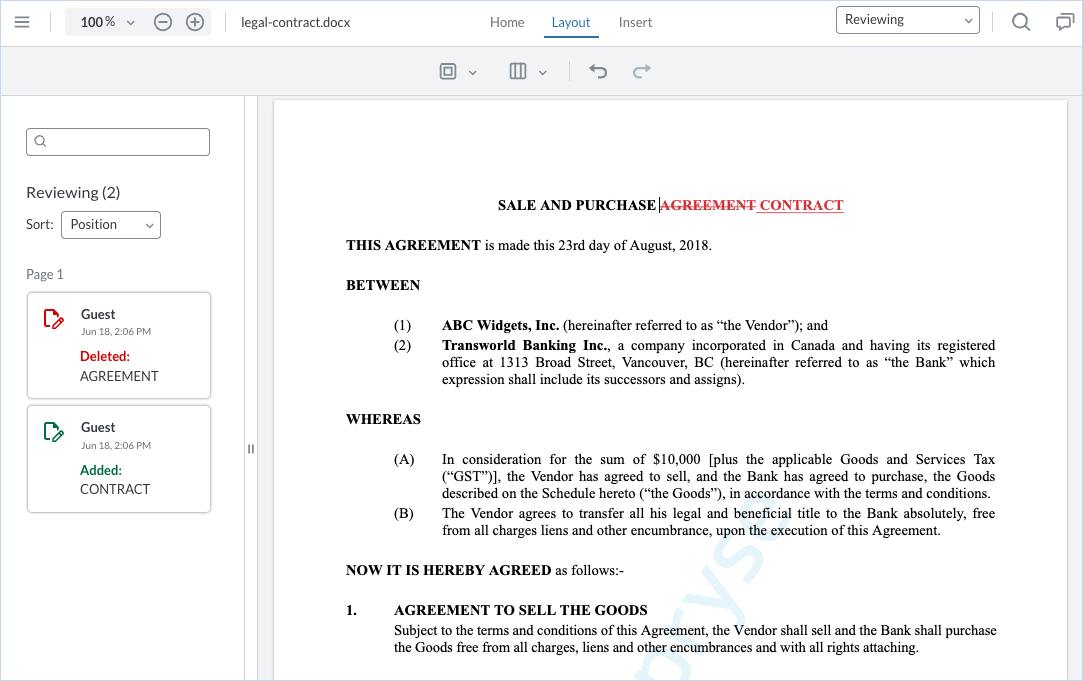
Tracked changes in the document and review sidebar.
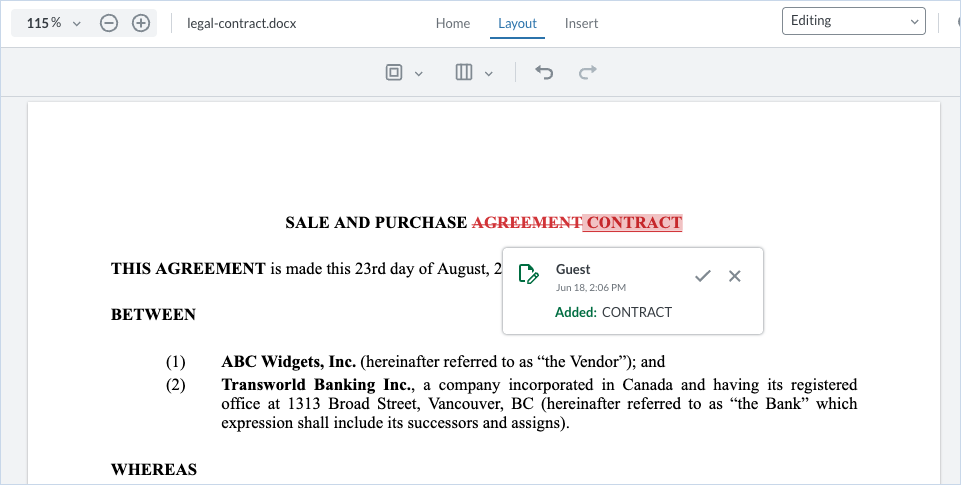
Tracked changes can be created by typing in reviewing mode. They may be accepted or rejected from the reviewing panel while in reviewing mode or by clicking the tracked change in editing mode.
Inline tracked change in Editing mode with accept and reject controls.
## TrackedChangeManager API
The [Core.Document.OfficeEditor.TrackedChangeManager](https://sdk.apryse.com/api/web/Core.Document.OfficeEditor.TrackedChangeManager.html) API provides programmatic control over tracked changes in the DOCX Editor. You can manage review workflows entirely through code, without relying on the default editor UI.
You can also use the API to build a fully custom review experience without relying on the default UI. For example, you can create a custom tracked changes panel, integrate changes into your own UI, or implement tailored review workflows using the provided methods and related events:
* [Retrieve changes](#get-tracked-changes) – Access all tracked changes in document order.
* [Navigate within the document](#navigate-tracked-changes) – Move the text cursor to a specific change and scroll it into view.
* [Work with selection](#select-tracked-changes) – Select tracked changes programmatically and respond to selection changes using events.
* [Perform actions](#modify-tracked-changes) – Accept or reject individual or multiple tracked changes programmatically.
* [Handle updates incrementally](#listen-for-change-updates) – Listen for events indicating changes being added, modified, or removed.
## Get tracked changes
Tracked changes can be retrieved by using the [getTrackedChanges](https://sdk.apryse.com/api/web/Core.Document.OfficeEditor.TrackedChangeManager.html#getTrackedChanges__anchor) API.
{% tabs %}
{% tab title="JavaScript" %}
{% code lineNumbers="true" %}
```js
WebViewer(...)
.then(instance => {
instance.Core.documentViewer.addEventListener('documentLoaded', async () => {
const trackedChangeManager = instance.Core.documentViewer.getDocument().getOfficeEditor().getTrackedChangeManager();
// Retrieves a list of tracked changes ordered by their position in the document
const trackedChanges = await trackedChangeManager.getTrackedChanges();
});
});
```
{% endcode %}
{% endtab %}
{% endtabs %}
[getTrackedChanges()](https://sdk.apryse.com/api/web/Core.Document.OfficeEditor.TrackedChangeManager.html#getTrackedChanges)
Tracked changes are returned as an array of `TrackedChange` objects, ordered by their position in the document.
{% tabs %}
{% tab title="JSON" %}
{% code lineNumbers="true" %}
```json
{
"id": "number - The unique identifier of the object",
"type": "'inserted'|'deleted' | 'formatted' - The type of tracked change",
"author": "string - The author of the tracked change",
"date": "Date - The date of the tracked change",
"plainText": "string - The content of the tracked change to be inserted or deleted",
"getPagePositions": "function - Returns a promise that resolves to an array of objects containing {pageNumber: number, rect: Core.Math.Rect} for each annotation related to the tracked change"
}
```
{% endcode %}
{% endtab %}
{% endtabs %}
[TrackedChange](https://sdk.apryse.com/api/web/Core.Document.OfficeEditor.TrackedChangeManager.html#.TrackedChange)
## Navigate tracked changes
Jump to a tracked change by ID using the [navigateToTrackedChange](https://sdk.apryse.com/api/web/Core.Document.OfficeEditor.TrackedChangeManager.html#navigateToTrackedChange__anchor) API. This moves the text cursor to the beginning of the change and scrolls it into view.
{% tabs %}
{% tab title="JavaScript" %}
{% code lineNumbers="true" %}
```js
WebViewer(...)
.then(instance => {
instance.Core.documentViewer.addEventListener('documentLoaded', async () => {
const trackedChangeManager = instance.Core.documentViewer.getDocument().getOfficeEditor().getTrackedChangeManager();
const trackedChanges = await trackedChangeManager.getTrackedChanges();
// Get id of last tracked change and navigate to it
const lastTrackedChangeId = trackedChanges[trackedChanges.length - 1];
await trackedChangeManager.navigateToTrackedChange(lastTrackedChangeId);
});
});
```
{% endcode %}
{% endtab %}
{% endtabs %}
[navigateToTrackedChange()](https://sdk.apryse.com/api/web/Core.Document.OfficeEditor.TrackedChangeManager.html#.navigateToTrackedChange__anchor)
## Select tracked changes
You can programmatically select a tracked change by ID using the [selectTrackedChange](https://sdk.apryse.com/api/web/Core.Document.OfficeEditor.TrackedChangeManager.html#selectTrackedChange__anchor) API, which highlights the change in the UI. You can also listen for selection changes using the `trackedChangeSelected` event, which is triggered whenever a tracked change is selected or deselected.
{% tabs %}
{% tab title="JavaScript" %}
{% code lineNumbers="true" %}
```js
WebViewer(...)
.then(instance => {
instance.Core.documentViewer.addEventListener('documentLoaded', async () => {
const trackedChangeManager = instance.Core.documentViewer.getDocument().getOfficeEditor().getTrackedChangeManager;
const trackedChanges = await officeEditor.getTrackedChanges();
// Set up listener for tracked change selection
instance.Core.documentViewer.getDocument().addEventListener('trackedChangeSelected', (trackedChange, action) => {
// Contains tracked change object and 'selected' or 'deselected' action
console.log(trackedChange, action);
});
// Find tracked change ID to select
const firstChangeId = trackedChanges[0].id;
// Programatically select a tracked change with an API
await trackedChangeManager().selectTrackedChange(firstChangeId);
});
});
```
{% endcode %}
{% endtab %}
{% endtabs %}
[selectTrackedChange()](https://sdk.apryse.com/api/web/Core.Document.OfficeEditor.TrackedChangeManager.html#selectTrackedChange__anchor) [trackedChangeSelected](https://sdk.apryse.com/api/web/Core.Document.OfficeEditor.html#trackedChangeSelected__anchor)
## Modify tracked changes
You can programmatically accept or reject tracked changes by calling the appropriate APIs with the IDs obtained from the tracked changes list.
{% tabs %}
{% tab title="JavaScript" %}
{% code lineNumbers="true" %}
```js
WebViewer(...)
.then(instance => {
instance.Core.documentViewer.addEventListener('documentLoaded', async () => {
const trackedChangeManager = instance.Core.documentViewer.getDocument().getOfficeEditor().getTrackedChangeManager();
const trackedChanges = await trackedChangeManager.getTrackedChanges();
// Accept tracked change by ID
await trackedChangeManager.acceptTrackedChange(trackedChanges[0].id);
// Reject tracked change by ID
await trackedChangeManager.rejectTrackedChange(trackedChanges[1].id);
});
});
```
{% endcode %}
{% endtab %}
{% endtabs %}
[acceptTrackedChange()](https://sdk.apryse.com/api/web/Core.Document.OfficeEditor.TrackedChangeManager.html#acceptTrackedChange__anchor) [rejectTrackedChange()](https://sdk.apryse.com/api/web/Core.Document.OfficeEditor.TrackedChangeManager.html#rejectTrackedChange__anchor)
Multiple tracked changes can also be programmatically accepted or rejected by using an array of tracked change IDs.
{% tabs %}
{% tab title="JavaScript" %}
{% code lineNumbers="true" %}
```js
WebViewer(...)
.then(instance => {
instance.Core.documentViewer.addEventListener('documentLoaded', async () => {
const trackedChangeManager = instance.Core.documentViewer.getDocument().getOfficeEditor().getTrackedChangeManager;
const trackedChanges = await officeEditor.getTrackedChanges();
const allTrackedChangeIds = trackedChanges.map(c => c.id);
// Accept all tracked changes by their IDs
await trackedChangeManager.acceptTrackedChanges(allTrackedChangeIds);
// Reject all tracked changes by their IDs
await trackedChangeManager.rejectTrackedChanges(allTrackedChangeIds);
});
});
```
{% endcode %}
{% endtab %}
{% endtabs %}
[acceptTrackedChanges()](https://sdk.apryse.com/api/web/Core.Document.OfficeEditor.TrackedChangeManager.html#acceptTrackedChanges__anchor) [rejectTrackedChanges()](https://sdk.apryse.com/api/web/Core.Document.OfficeEditor.TrackedChangeManager.html#rejectTrackedChanges__anchor)
## Get tracked change positions
Use the `getPagePositions()` method to retrieve the on-page locations of a single tracked change, including its bounding rectangles and page numbers. This shows where the tracked-change markup appears in the document when the method is called. It can be useful for positioning UI elements such as tooltips, highlights, or custom overlays.
{% tabs %}
{% tab title="JavaScript" %}
{% code lineNumbers="true" %}
```js
WebViewer(...)
.then(instance => {
instance.Core.documentViewer.addEventListener('documentLoaded', async () => {
const trackedChangeManager = instance.Core.documentViewer.getDocument().getOfficeEditor().getTrackedChangeManager();
const trackedChanges = await trackedChangeManager.getTrackedChanges();
// Check positions of first tracked change in document
const trackedChangePositions = await trackedChanges[0].getPagePositions();
const startRect = trackedChangePositions[0].rect; // the first rect position of the tracked change
const startPageNumber = trackedChangePositions[0].pageNumber; // the first page the tracked change appears
const endRect = trackedChangePositions[trackedChangePositions.length - 1].rect; // the last rect position of the tracked change
const endPageNumber = trackedChangePositions[trackedChangePositions.length - 1].pageNumber; // the last page the tracked change appears
});
});
```
{% endcode %}
{% endtab %}
{% endtabs %}
[TrackedChange](https://sdk.apryse.com/api/web/Core.Document.OfficeEditor.TrackedChangeManager.html#.TrackedChange) [Core.Math.Rect](https://sdk.apryse.com/api/web/Core.Math.Rect.html)
## Listen for change updates
Listen for tracked change updates using the `trackedChangesUpdated` event. This event is triggered when a tracked change is added, modified, or deleted.
{% tabs %}
{% tab title="JavaScript" %}
{% code lineNumbers="true" %}
```js
WebViewer(...)
.then(instance => {
instance.Core.documentViewer.addEventListener('documentLoaded', async () => {
const officeEditor = instance.Core.documentViewer.getDocument().getOfficeEditor();
let trackedChanges = await officeEditor.getTrackedChanges();
// Set up listener to respond to updates about tracked changes
instance.Core.documentViewer.getDocument().addEventListener('trackedChangesUpdated', (trackedChange, action) => {
switch (action) {
case 'add':
trackedChanges = [...trackedChanges, trackedChange];
break;
case 'delete':
trackedChanges = trackedChanges.filter(tc => tc.id !== trackedChange.id);
break;
case 'modify':
trackedChanges = trackedChanges.map(tc => tc.id === trackedChange.id ? trackedChange : tc);
break;
}
});
});
});
```
{% endcode %}
{% endtab %}
{% endtabs %}
[trackedChangesUpdated](https://sdk.apryse.com/api/web/Core.Document.OfficeEditor.html#event:trackedChangesUpdated__anchor)
---
# Agent Instructions
This documentation is published with GitBook. GitBook is the documentation platform designed so that both humans and AI agents can read, navigate, and reason over technical content effectively. Learn more at gitbook.com.
## Querying This Documentation
If you need additional information that is not directly available in this page, you can query the documentation by asking a question.
Perform an HTTP GET request on the following URL with the `ask` and `goal` query parameters:
```
GET https://docs.apryse.com/web/docx-editor/docx-editor-tracked-changes.md?ask=&goal=
```
`ask` is the immediate question: it should be specific, self-contained, and written in natural language.
`goal` is what the user is ultimately trying to achieve, the reason they need the answer. Sharing it helps GitBook give you a better, more relevant answer. A goal is most helpful when it describes the outcome the user wants rather than restating the question. For example, with `ask=how do I create an API token`, a goal like `automate deployments from our CI pipeline` lets GitBook tailor the answer to that use case.
The response will contain a direct answer to the question and relevant excerpts and sources from the documentation.
Use this mechanism when the answer is not explicitly present in the current page, you need clarification or additional context, or you want to retrieve related documentation sections.