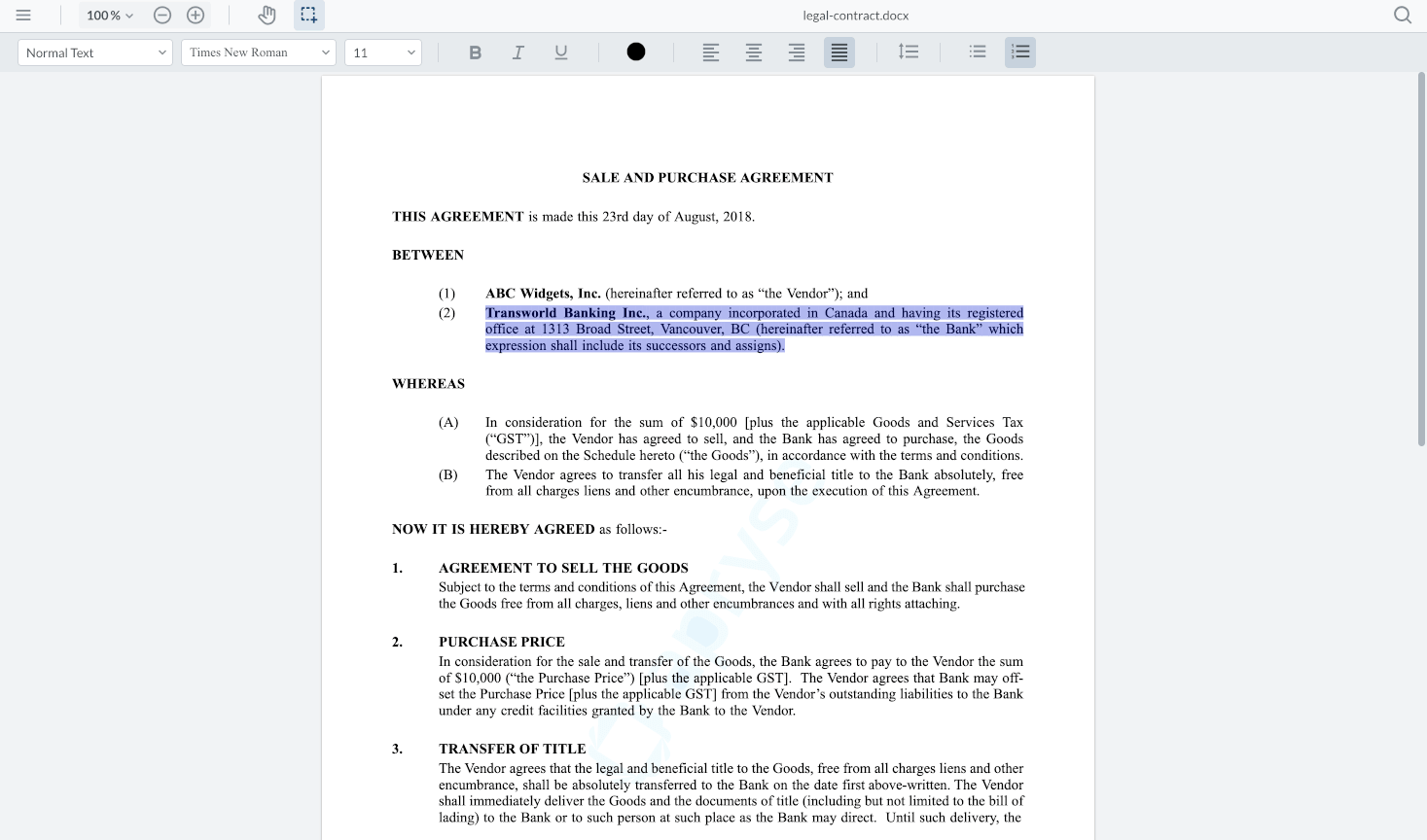
Enable Apryse DOCX Editor
Create and edit DOCX files without any server‑side dependencies. WebViewer enables Microsoft Office file editing directly in the browser—no intermediate format conversions or Microsoft Office installations required. For more, see the DOCX Editor overview.

If you have a URL for a document, you can pass it to the WebViewer constructor or loadDocument function to open it.
You can also, alternatively, open a new, blank DOCX file through the WebViewer constructor.
Get started videos
Explore the React and Svelte tabs to learn how to integrate WebViewer and enable the Apryse DOCX Editor in Apryse WebViewer. Each tab includes a corresponding video.
The React video shows how to integrate Apryse WebViewer with the DOCX Editor enabled, then opens an existing DOCX file in a React project.
The Svelte video shows the same WebViewer integration in a Svelte project, but opens a new, blank DOCX file inside the viewer.
You can skip the videos and go to the Enable and open existing DOCX document section to get started.
Prerequisites
Before you start:
Install Node.js and npm. We recommend using the latest active LTS release.
Create a folder for your project.
Integrate WebViewer into your project.
Open a text editor like Visual Studio Code.
Get your Apryse trial key.
Enable and open existing DOCX document
If you have a URL for a document, you can pass it to the WebViewer constructor or loadDocument function to open it.
WebViewer constructor
Load the office document with the WebViewer constructor, and it will load with the viewer.
This is an example of how the code might look in an HTML project where WebViewer is integrated, and DOCX Editor is enabled:
Load document
Load the office document with the loadDocument() method after WebViewer is initialized.
Enable and open new, blank DOCX document
You can open a new, blank DOCX file through the WebViewer constructor.
WebViewer constructor
Initialize WebViewer constructor without the initialDoc property, and the viewer will load with an empty document, ready to be edited.
IME keyboard support
DOCX Editor supports Input Method Editor (IME) keyboard input via string composition, enabling complex text input. This includes proper text entry for languages such as Chinese, Japanese, and Korean, as well as other languages that rely on composition events. This feature is not enabled by default.
IME support in the DOCX Editor is controlled through:
A constructor option to enable composition input by default.
Runtime APIs to enable, disable, or inspect composition state.
WebViewer IME constructor option
To enable string composition when initializing DOCX Editor, set enableCompositionInput to true as shown in the constructor here:
This approach should be used if you anticipate that your application will support multilingual keyboard input by default.
IME runtime composition APIs
To dynamically enable, disable, or check the status of IME string composition, use the following APIs:
These APIs allow you to toggle IME support based on user preferences or locale.
Next steps
To explore additional document workflows and features, see:
Last updated
Was this helpful?