> For the complete documentation index, see [llms.txt](https://docs.apryse.com/llms.txt). Markdown versions of documentation pages are available by appending `.md` to page URLs; this page is available as [Markdown](https://docs.apryse.com/web/docx-editor/edit-docx-file.md).

# Enable Apryse DOCX Editor

Create and edit DOCX files in JavaScript with Apryse WebViewer. Get started by integrating the DOCX Editor and rendering Word documents directly in your web app.

{% hint style="info" %}
**Requirements**

*These packages are required to use these features in production. Trial keys have unlimited access to all features*

<a href="https://apryse.com/capabilities#DOCXEditor" class="button primary">Package: DOCX Editor</a><a href="https://showcase.apryse.com/office-editor" class="button primary">Live demo</a>
{% endhint %}

Create and edit DOCX files without any server‑side dependencies. WebViewer enables Microsoft Office file editing directly in the browser—no intermediate format conversions or Microsoft Office installations required. For more, see the [DOCX Editor overview](/web/docx-editor/docx-editor.md).

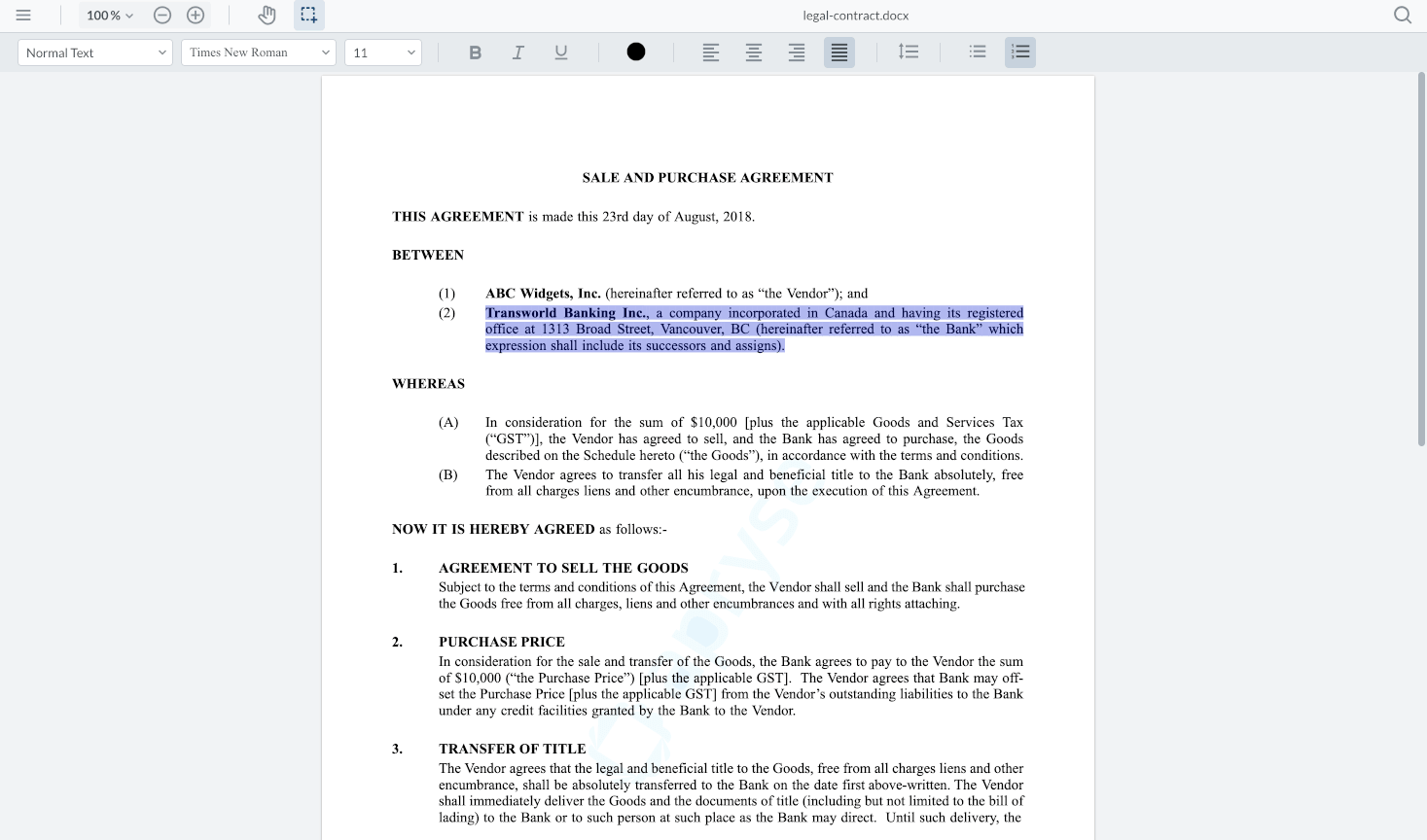
<figure><img src="https://3532544125-files.gitbook.io/~/files/v0/b/gitbook-x-prod.appspot.com/o/spaces%2FX9YnTSKIHvV7m0A36LbO%2Fuploads%2Fgit-blob-2a249cf05355875247f87e28fa7843b6a217d438%2Fa05051fc5d7d2f63b9d4169d0c53613f548bc74d-1467x864.png?alt=media" alt="A docx file open in DOCX Editor"><figcaption><p>A docs file open in DOCX Editor</p></figcaption></figure>

If you have a URL for a document, you can pass it to the [WebViewer constructor](https://docs.apryse.com) or [loadDocument](https://docs.apryse.com) function to open it.

You can also, alternatively, open a new, blank DOCX file through the WebViewer constructor.

## Get started videos

Explore the React and Svelte tabs to learn how to integrate WebViewer and enable the Apryse DOCX Editor in Apryse WebViewer. Each tab includes a corresponding video.

* The React video shows how to integrate Apryse WebViewer with the DOCX Editor enabled, then opens an existing DOCX file in a React project.
* The Svelte video shows the same WebViewer integration in a Svelte project, but opens a new, blank DOCX file inside the viewer.

You can skip the videos and go to the [Enable and open existing DOCX document](#enable-and-open-existing-docx-document) section to get started.

{% tabs %}
{% tab title="React" %}
{% embed url="<https://www.youtube.com/embed/4mKJnlo0uuY?si=xABQkERgSKVMBFax>" %}
Integrate WebViewer and DOCX Editor into a React app
{% endembed %}
{% endtab %}

{% tab title="Svelte" %}
{% embed url="<https://www.youtube.com/embed/s0heq5M4pOY?si=50vX-_cht8y6W-Aw>" %}
Integrate WebViewer and DOCX Editor into a Svelte app
{% endembed %}
{% endtab %}
{% endtabs %}

## Prerequisites

Before you start:

* Install [Node.js](https://nodejs.org/en/download) and npm. We recommend using the latest active LTS release.
* Create a folder for your project.
* [Integrate WebViewer](/web/get-started/readme.md) into your project.
* Open a text editor like Visual Studio Code.
* Get your Apryse trial key.

{% @apryse-license-key/apryse-license-key platform="WEB\_VIEWER" variant="full" %}

## Enable and open existing DOCX document

If you have a URL for a document, you can pass it to the [WebViewer constructor](https://sdk.apryse.com/api/web/global.html#WebViewerOptions) or [loadDocument](https://sdk.apryse.com/api/web/UI.html#.loadDocumentOptions) function to open it.

### WebViewer constructor

Load the office document with the `WebViewer` constructor, and it will load with the viewer.

{% tabs %}
{% tab title="JavaScript" %}
{% code lineNumbers="true" %}

```js
WebViewer({
  ...,
  initialDoc: 'https://pdftron.s3.amazonaws.com/downloads/pl/report.docx',
  initialMode: WebViewer.Modes.DOCX_EDITOR,
}, document.getElementById('viewer'));
```

{% endcode %}
{% endtab %}
{% endtabs %}

[WebViewerOptions](https://sdk.apryse.com/api/web/global.html#WebViewerOptions) [initialModes](https://sdk.apryse.com/api/web/global.html#Modes)

This is an example of how the code might look in an HTML project where WebViewer is integrated, and DOCX Editor is enabled:

<pre class="language-html" data-line-numbers><code class="lang-html">&#x3C;!DOCTYPE html>
&#x3C;html lang="en">
&#x3C;head>
  &#x3C;meta charset="UTF-8" />
  &#x3C;meta name="viewport" content="width=device-width, initial-scale=1.0" />
  &#x3C;title>Basic WebViewer&#x3C;/title>
&#x3C;/head>

&#x3C;body>
  &#x3C;!-- Add WebViewer container -->
  &#x3C;div id="viewer" style="width: 100%; height: 100vh; margin: 0 auto;">&#x3C;/div>
  
  &#x3C;!-- Load WebViewer library -->
  &#x3C;script src="/lib/webviewer/webviewer.min.js">&#x3C;/script>

  &#x3C;script>
    WebViewer(
      {
        // Path to the 'lib' folder
        path: "/lib/webviewer",
        licenseKey: "<code class="expression">visitor.claims.wvKey || "YOUR_LICENSE_KEY"</code>",
        initialDoc: "https://pdftron.s3.amazonaws.com/downloads/pl/report.docx",
        initialMode: WebViewer.Modes.DOCX_EDITOR,

        // You can also load documents from your server:
        // initialDoc: "/path/to/my/file.pdf",
      },
      document.getElementById("viewer")
    ).then((instance) => {
      const { documentViewer, annotationManager } = instance.Core;

      // Call methods from instance, documentViewer, and annotationManager as needed
      // Access additional namespaces as follows:
      // const Tools = instance.Core.Tools;
      // const Annotations = instance.Core.Annotations;

      documentViewer.addEventListener("documentLoaded", () => {
        // Call methods relating to the loaded document
      });
    });
  &#x3C;/script>
&#x3C;/body>
&#x3C;/html>
</code></pre>

### Load document

Load the office document with the `loadDocument()` method after WebViewer is initialized.

{% tabs %}
{% tab title="JavaScript" %}
{% code lineNumbers="true" %}

```js
WebViewer(...)
  .then(instance => {
    instance.UI.loadDocument(
      'https://pdftron.s3.amazonaws.com/downloads/pl/report.docx',
      {
        filename: 'report.docx',
        initialMode: WebViewer.Modes.DOCX_EDITOR,
      });
  });
```

{% endcode %}
{% endtab %}
{% endtabs %}

[WebViewer](https://sdk.apryse.com/api/web/global.html#WebViewer__anchor) [WebViewerInstance.UI.loadDocument](https://sdk.apryse.com/api/web/UI.html?_gl=1*u3vyd0*_gcl_aw*R0NMLjE3NzI4MjgxODcuQ2owS0NRaUFrNnJOQmhDeEFSSXNBTjVtUUx1eXZQakl5OVJVaWxRUllFcm9EV2d1N0w5S1BfMnBxdU5ubW5Qck5HTWdfaFctM1JrVGdxc2FBbV9zRUFMd193Y0I.*_gcl_au*OTIwNjkxNDYyLjE3NzY3ODcyNTI.\&pk_vid=1d9ecff61586c6f61778527720ccf96a#.loadDocument)

## Enable and open new, blank DOCX document

You can open a new, blank DOCX file through the WebViewer constructor.

### WebViewer constructor

Initialize WebViewer constructor without the `initialDoc` property, and the viewer will load with an empty document, ready to be edited.

{% tabs %}
{% tab title="JavaScript" %}
{% code lineNumbers="true" %}

```js
WebViewer({
  ...,
  enableOfficeEditing: true,
}, document.getElementById('viewer'));
```

{% endcode %}
{% endtab %}
{% endtabs %}

[WebViewer](https://sdk.apryse.com/api/web/global.html#WebViewer__anchor)

## IME keyboard support

DOCX Editor supports Input Method Editor (IME) keyboard input via string composition, enabling complex text input. This includes proper text entry for languages such as Chinese, Japanese, and Korean, as well as other languages that rely on composition events. This feature is not enabled by default.

IME support in the DOCX Editor is controlled through:

* A constructor option to enable composition input by default.
* Runtime APIs to enable, disable, or inspect composition state.

### WebViewer IME constructor option

To enable string composition when initializing DOCX Editor, set `enableCompositionInput` to `true` as shown in the constructor here:

{% tabs %}
{% tab title="JavaScript" %}
{% code lineNumbers="true" %}

```js
WebViewer({
  path: '/lib',
  enableOfficeEditing: true,
  enableCompositionInput: true
}, document.getElementById('viewer'));
```

{% endcode %}
{% endtab %}
{% endtabs %}

This approach should be used if you anticipate that your application will support multilingual keyboard input by default.

### IME runtime composition APIs

To dynamically enable, disable, or check the status of IME string composition, use the following APIs:

* [enableCompositionInput()](https://sdk.apryse.com/api/web/Core.DocumentViewer.html#enableCompositionInput__anchor)
* [disableCompositionInput()](https://sdk.apryse.com/api/web/Core.DocumentViewer.html#disableCompositionInput__anchor)
* [isCompositionActive()](https://sdk.apryse.com/api/web/Core.DocumentViewer.html#isCompositionActive__anchor)

These APIs allow you to toggle IME support based on user preferences or locale.

## Next steps

To explore additional document workflows and features, see:

* [Learn about the DOCX Editor](/web/docx-editor/docx-editor.md)
* [Track changes in DOCX files](/web/docx-editor/docx-editor-tracked-changes.md)
* [Manage DOCX edit modes](/web/docx-editor/docx-editor-initial-edit-mode.md)


---

# Agent Instructions
This documentation is published with GitBook. GitBook is the documentation platform designed so that both humans and AI agents can read, navigate, and reason over technical content effectively. Learn more at gitbook.com.

## Querying This Documentation
If you need additional information that is not directly available in this page, you can query the documentation dynamically by asking a question.

Perform an HTTP GET request on the current page URL with the `ask` query parameter, and the optional `goal` query parameter:

```
GET https://docs.apryse.com/web/docx-editor/edit-docx-file.md?ask=<question>&goal=<endgoal>
```

`ask` is the immediate question: it should be specific, self-contained, and written in natural language.
`goal` is optional and describes the broader end goal you are ultimately trying to accomplish on behalf of the user. GitBook uses it to tailor the answer towards what is most useful for that goal.

The response will contain a direct answer to the question and relevant excerpts and sources from the documentation.

Use this mechanism when the answer is not explicitly present in the current page, you need clarification or additional context, or you want to retrieve related documentation sections.
