For the complete documentation index, see llms.txt. This page is also available as Markdown.

Get and convert PDF coordinates using JavaScript

When working with locations in WebViewer, it's important to understand which coordinate space they use. For example, when you set the (x, y) value of an annotation through the WebViewer API, the location is relative to the unzoomed page in viewer page coordinates, not PDF page coordinates.

PDF page coordinates

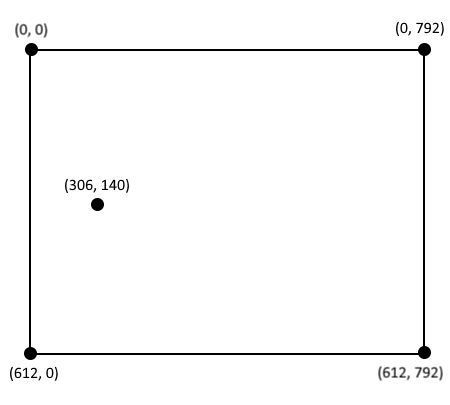
In a PDF document, the location (0, 0) is at the bottom-left corner of the page. The x-axis extends horizontally to the right, and the y-axis extends vertically upward.

Here are some APIs to get a page's width and height.

A page may have a rotation or translation associated with it; in that case, (0, 0) may no longer correspond to the bottom-left corner of the page relative to the viewer.

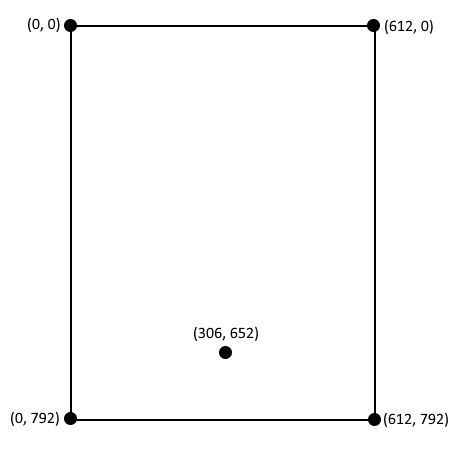
For example, here is the same page as above but rotated 90 degrees clockwise. Notice how the coordinates have all stayed the same relative to each other, but (0, 0) is now in the top-left corner relative to the viewport.

Here is the getPageRotation API to get a page's rotation.

Generally, when you use WebViewer, you won't deal with PDF coordinates directly.

Viewer page coordinates

When reading or writing annotation locations in WebViewer, these values are in viewer coordinates. The (0, 0) point is located at the top left of the page. The x-axis extends horizontally to the right, and the y-axis extends vertically downward.

Viewer page coordinates are tied to the underlying page, not to how the page appears on screen. When you rotate a page, the same coordinates point to a different visual location in the viewport. To position annotations based on how they appear to the user, see Viewport-relative annotation positioning.

Convert between PDF and viewer coordinates

WebViewer uses a transformation matrix for each page to convert between PDF and viewer coordinates. The matrix accounts for flipped y values and possible translation or scaling.

Since XOD files are considered 96 DPI and PDF files 72 DPI, the scaling factor for XOD files is 96/72, or 4/3. For PDF files, there is no scaling applied, just the flipped y values.

Annotation locations inside XFDF are in PDF coordinates. When WebViewer imports an XFDF, it automatically transforms the locations into viewer coordinates using the matrix. When exporting XFDF, WebViewer reverses the process and converts back to PDF coordinates.

If you ever need to convert between PDF and viewer coordinates yourself, you can use the getPDFCoordinates function to get PDF coordinates or the getXODCoordinates (for XOD files) or getViewerCoordinates (for PDF or Office files) functions.

For example:

Window coordinates

These coordinates are relative to the browser window, with (0, 0) in the top-left corner. The x-axis extends to the right, and the y-axis extends downwards as you scroll through the document content.

Screenshot of the WebViewer document viewer with the thumbnails panel open, showing three red coordinate markers: (0, 0) at the top-left corner of the browser window, (780, 119) at the top-left corner of the document page, and (1319, 816) at the bottom-right corner of the document page, illustrating the window coordinate system.
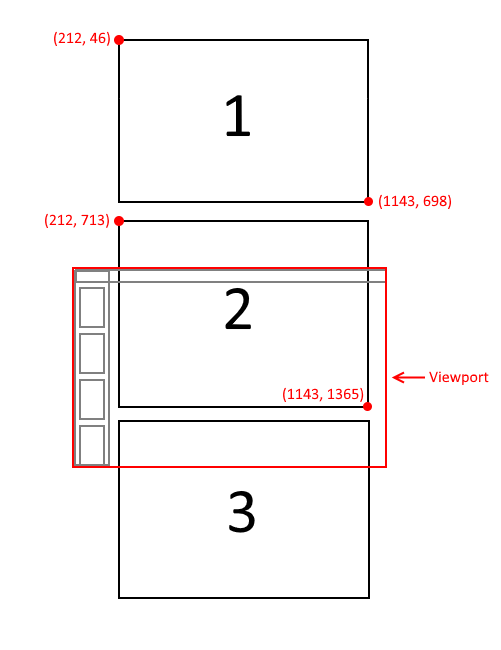

Note that the viewer's scroll position does not affect these coordinates. For example, if the user has scrolled to page 10, the window coordinates of the first page remain the same.

In the following image, you can see an example of the document scrolling downward, but the window coordinates for the pages stay the same.

Converting between window and viewer page coordinates

WebViewer provides functions on the current display mode to convert between window and page coordinates. The pageToWindow and windowToPage functions. For example:

Convert between mouse locations and window coordinates

Mouse locations are relative to the viewport, so to convert to window coordinates you only need the viewer's scrollLeft and scrollTop values. If you're inside of a tool (for example, your own custom tool), you can use this.getMouseLocation(e) to get window coordinates from a mouse event.

Or manually using the scroll values from the viewer element:

This is what happens internally in the default tools, and as we saw above, you can transform window coordinates to page coordinates with a function call.

In practice

What if you want to double-click the page and add a DOM element there? You probably want the element to scroll with the page and be repositionable after the zoom changes. The easiest way to do this is to position it absolutely inside the pageContainer element.

You'll get the event object from the mouse double-click event, transform it into window coordinates, and convert those into page coordinates. DocumentViewer triggers a dblClick event so we can use that to get double clicks inside the viewing area.

You also need to figure out what page you double-clicked on, and you can use the getSelectedPages function to do this:

Once you have the page, you can get the page coordinates from the window coordinates:

Then you can create your custom element and add it to the page container element. Note that you need to scale the position and size by the zoom level.

You'll notice that if you change the zoom or make the page rerender, the elements will disappear. This is because when a page rerenders, it resizes and re-adds itself to the DOM.

To handle this, you can keep track of your custom elements and add them to the updated pageContainer on the pageComplete event. The full code looks like this:

Viewport-relative annotation positioning

Annotations normally store their location in page coordinates. This helps because the annotation stays tied to the underlying document page, but page rotation can make programmatic positioning less intuitive.

For example, consider a rectangle annotation placed near the top-left corner of a page. If you copy it to a page rotated by 90 degrees, copying the stored page coordinates directly can place the rectangle in a different visual corner or change its displayed orientation.

Viewport-relative positioning solves this by describing an annotation as it appears to the user in the current viewport. The viewport-relative values account for the page's effective rotation, including document page rotation and viewer rotation.

Two workflows showing rectangle annotation copy and paste across a 90-degree page rotation. In the disabled workflow, the pasted rectangle becomes vertically oriented and shifts position. In the enabled workflow, the rectangle remains horizontal and preserves its x and y offsets relative to the page's top-left corner, maintaining the same visual placement after paste.

Get viewport-relative annotation properties

Use getViewportProperties to read the position, dimensions, and rotation of a rectangular annotation in viewport-relative coordinates.

The returned object contains:

  • x and y: The annotation's top-left position in the displayed page.

  • width and height: The annotation's displayed dimensions.

  • rotation: The annotation's visual rotation in degrees, from 0 up to but not including 360.

These values describe where the annotation appears on the displayed page. This makes them useful when an application needs to align annotations with UI elements, templates, or coordinates received from another viewport-based workflow.

Set viewport-relative annotation properties

Use setViewportProperties to position and rotate a rectangular annotation using viewport-relative values.

WebViewer converts the values back to the annotation's stored page coordinates automatically. The x, y, width, and height properties are required. The rotation property is optional and defaults to 0.

setViewportProperties keeps the annotation within the viewport page bounds before converting it to page coordinates. If the requested geometry extends beyond the page, WebViewer adjusts the position and dimensions to fit.

Note: setViewportProperties updates the annotation data but does not redraw it. Call annotationManager.redrawAnnotation(annotation) after changing its properties.

Work with path annotations

Path-based annotations, such as lines and freehand annotations, can use viewport-relative path APIs. These APIs are useful when an annotation's visual shape must remain aligned with the displayed page after rotation.

Use getViewportPath and setViewportPath to read or write an entire path.

For workflows that edit a single path point, use getViewportPathPoint and setViewportPathPoint.

Copy annotations between rotated pages

Use the viewportRelative paste option when copying annotations between pages that have different rotations. WebViewer transforms the copied annotation through viewport space, so its visual position and orientation are preserved on the target page.

When viewportRelative is true, WebViewer preserves the copied annotation's visual placement and orientation as closely as the target page allows. This is especially useful for stamps, free text, shapes, and freehand annotations.

If the source and target pages have different dimensions, WebViewer fits the result within the target page bounds.

Info: The viewportRelative option ignores useMouseLocation. Use viewport-relative paste when preserving visual placement is more important than pasting at the cursor position.

Toggle viewport-relative annotation positioning

The Settings Modal includes an Enable Viewport-Relative Annotation Positioning toggle under Advanced Settings > Annotations.

Screenshot of the Settings Modal which contains an Enable Viewport-Relative Annotation Positioning section and a toggle button to turn this feature on/off

When enabled, standard keyboard paste uses viewport-relative positioning. Copying an annotation from one page and pasting it onto a page with a different rotation preserves the annotation's visual position and orientation.

When disabled, WebViewer uses the page-coordinate paste behavior. This maintains compatibility with workflows that expect annotation geometry to be copied directly in page coordinates.

Last updated

Was this helpful?