> For the complete documentation index, see [llms.txt](https://docs.apryse.com/llms.txt). Markdown versions of documentation pages are available by appending `.md` to page URLs; this page is available as [Markdown](https://docs.apryse.com/web/ui-customization/multi-viewer-mode.md).
# View and Edit Documents Side-by-Side in WebViewer PDF Editor
Learn how to enable MultiViewer mode in WebViewer 8.9+ and compare differences between two documents side-by-side. Starting with WebViewer 11.12, review and edit docs when they're side-by-side.
{% hint style="info" %}
**Requirements**
*These packages are required to use these features in production. Trial keys have unlimited access to all features*
Package: CompareLive demo
{% endhint %}
In WebViewer version 8.9+ you can view two documents loaded side-by-side in the UI to use to compare documents.
Starting with WebViewer 11.12, you also have full editing capabilities while in MultiViewer (side-by-side) mode, transforming it from a comparison-focused tool into a fully interactive, side-by-side workspace. MultiViewer now includes the complete set of WebViewer PDF editing tools across all supported file types.
With editing, you can:
* Edit multiple documents directly within a single view.
* Set permissions independently across each viewer.
* Apply changes to PDFs, images, Microsoft Office documents, and more.
* Work with each document independently or simultaneously, consistent with standard WebViewer interactions.
These enhancements streamline key multi-document workflows by enabling you to review, compare, and edit content without switching contexts. Editing no longer interrupts comparisons, and you gain efficiency by remaining in a single workspace.
In MultiViewer mode, the WebViewer header and toolbar are shared between both document viewers. This lets you select a tool once and use it seamlessly across both viewers at the same time.

## Enter/Exit MultiViewer mode programmatically
If you Apryse WebViewer version 10.4 or earlier, you'll use `enable/disableFeatures` to enter or exit MultiViewer. To toggle this feature on/off in the WebViewer interface, use the following code:
{% tabs %}
{% tab title="JavaScript" %}
{% code lineNumbers="true" %}
```js
WebViewer({
path: '/lib',
fullAPI: true,
}, viewerElement).then(instance => {
const { UI } = instance;
UI.enableFeatures([UI.Feature.MultiViewerMode]);
UI.disableFeatures([UI.Feature.MultiViewerMode]);
});
```
{% endcode %}
{% endtab %}
{% endtabs %}
This will add the option `Compare Pages` in the View controls dropdown menu. By clicking the `Compare Pages`, you can enter MultiViewer mode.

If you use Apryse WebViewer version 10.5+, you must use `enterMultiViewerMode` and `exitMultiViewerMode` APIs to enter/exit MultiViewer instead of `enable/disableFeatures`, like the following:
{% tabs %}
{% tab title="JavaScript" %}
{% code lineNumbers="true" %}
```js
WebViewer({
path: '/lib',
...
})
.then((instance) => {
const { enterMultiViewerMode, exitMultiViewerMode } = instance.UI;
enterMultiViewerMode(); // This should create two document viewer in WebViewer.
exitMultiViewerMode(); // This should recover to one single document viewer in WebViewer.
});
```
{% endcode %}
{% endtab %}
{% endtabs %}
This will add the option `Compare Pages` in the View controls dropdown menu. By clicking the `Compare Pages`, you can enter MultiViewer mode.
## Compare the differences between two documents
{% hint style="info" %}
**Legacy Compare Mode**
The following section refers to the legacy compare mode used prior to WebViewer 11+. The comparison feature is now available in the UI without needing to use the 'Start Comparison' button as long as the MultiViewer feature is enabled.
{% endhint %}
By default, if `fullAPI` is enabled in the WebViewer constructor and `instance.UI.Feature.ComparePages` is enabled, `MultiViewerMode` will come with the 'Start Comparison' button, which when clicked, will highlight all the text differences on the document using annotations.
If you would like to enable/disable the `Show Comparison` Button, you can do it with the API below:
{% tabs %}
{% tab title="JavaScript" %}
{% code lineNumbers="true" %}
```js
WebViewer({
path: '/lib',
...
})
.then((instance) => {
const { UI } = instance;
UI.enableFeatures([UI.Feature.ComparePages]);
UI.disableFeatures([UI.Feature.ComparePages]);
});
```
{% endcode %}
{% endtab %}
{% endtabs %}
It will also enable a panel that will list the differences allowing you to search through them. You can also click the items in the panel to be scrolled to the highlighted change on both sides.

You can also compare the difference between two documents with `documentViewer.startSemanticDiff` and stop the comparison with `documentViewer.stopSemanticDiff`.
{% tabs %}
{% tab title="JavaScript" %}
{% code lineNumbers="true" %}
```js
WebViewer({
path: '/lib',
...
}, viewerElement)
.then((instance) => {
instance.UI.enterMultiViewerMode();
const { getDocumentViewers } = instance.Core;
const [documentViewerOne, documentViewerTwo] = getDocumentViewers();
documentViewerTwo.loadDocument('./demo-annotated-2.pdf');
documentViewerOne.addEventListener('documentLoaded', () => {
// Start comparison and mark the difference
documentViewerOne.startSemanticDiff(documentViewerTwo);
// Disable the comparison
documentViewerOne.stopSemanticDiff();
});
documentViewerOne.loadDocument('./demo-annotated-1.pdf');
});
```
{% endcode %}
{% endtab %}
{% endtabs %}
To disable the comparison functionality, you can pass `disableMultiViewerComparison` to the WebViewer constructor.
{% hint style="info" %}
**disableMultiViewerComparison Option**
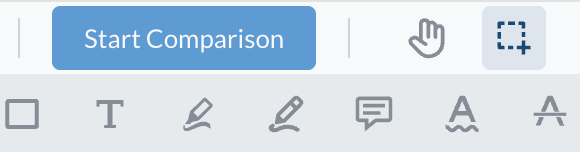
The `disableMultiViewerComparison` constructor option was meant to disable the 'Start Comparison' button in WebViewer's legacy UI. Starting in WebViewer 11+, this button no longer exists.
 {% endhint %}
{% tabs %}
{% tab title="JavaScript" %}
{% code lineNumbers="true" %}
```js
WebViewer({
disableMultiViewerComparison: true,
path: '/lib',
}, viewerElement);
```
{% endcode %}
{% endtab %}
{% endtabs %}
## API
In MultiViewer mode you can access the APIs on the second `DocumentViewer` through the [getDocumentViewers()](https://sdk.apryse.com/api/web/Core.html#.getDocumentViewers__anchor) API.
To ensure the second DocumentViewer has been initialized before you call it, you can wrap your code in the [MULTI\_VIEWER\_READY](https://sdk.apryse.com/api/web/UI.html#event:multiViewerReady__anchor) event:
{% hint style="info" %}
**MULTI\_VIEWER\_READY Event**
Starting in WebViewer 11.12, when entering MultiViewer mode all document viewers should be available right away to interact with. The `MULTI_VIEWER_READY` event is no longer necessary.
{% endhint %}
{% tabs %}
{% tab title="JavaScript" %}
{% code lineNumbers="true" %}
```js
WebViewer({...}, viewerElement).then(function(instance) {
const { UI, Core } = instance;
UI.addEventListener(UI.Events.MULTI_VIEWER_READY, () => {
Core.getDocumentViewers()[0].loadDocument('pdf_vers1.pdf'); // Load 'pdf_vers1.pdf' on first DocumentViewer
Core.getDocumentViewers()[1].loadDocument('pdf_vers2.pdf'); // Load 'pdf_vers2.pdf' on second DocumentViewer
})
UI.enableFeatures([UI.Feature.MultiViewerMode]);
});
```
{% endcode %}
{% endtab %}
{% endtabs %}
There are also some additional APIs to control the scroll and zoom syncing.
* [enableMultiViewerSync()](https://sdk.apryse.com/api/web/UI.html#.enableMultiViewerSync__anchor)
* [disableMultiViewerSync()](https://sdk.apryse.com/api/web/UI.html#.disableMultiViewerSync__anchor)
* [isMultiViewerSyncing()](https://sdk.apryse.com/api/web/UI.html#.isMultiViewerSyncing__anchor)
### Save Document Button
By default, the save document button is disabled. You can enable this button to allow users to download the document from either side.
{% tabs %}
{% tab title="JavaScript" %}
{% code lineNumbers="true" %}
```js
WebViewer({...}, viewerElement).then(function(instance) {
const { UI } = instance;
UI.enableElements(["multiViewerSaveDocumentButton"]);
});
```
{% endcode %}
{% endtab %}
{% endtabs %}
### Active Document Viewer Key
Starting in WebViewer 11.12, you can set the active document viewer key programmatically using the [setActiveDocumentViewerKey](https://docs.apryse.com/api/web/UI.html#.setActiveDocumentViewerKey) API. You can also retrieve the active document viewer key using the [getActiveDocumentViewerKey](https://docs.apryse.com/api/web/UI.html#.getActiveDocumentViewerKey__anchor) API.
{% tabs %}
{% tab title="JavaScript" %}
{% code lineNumbers="true" %}
```js
WebViewer({...}, viewerElement).then(function(instance) {
const { UI } = instance;
// set the active document viewer key to 2
UI.setActiveDocumentViewerKey(2);
// get the active document viewer key
const activeKey = UI.getActiveDocumentViewerKey();
console.log(activeKey);
});
```
{% endcode %}
{% endtab %}
{% endtabs %}
---
# Agent Instructions
This documentation is published with GitBook. GitBook is the documentation platform designed so that both humans and AI agents can read, navigate, and reason over technical content effectively. Learn more at gitbook.com.
## Querying This Documentation
If you need additional information that is not directly available in this page, you can query the documentation by asking a question.
Perform an HTTP GET request on the following URL with the `ask` and `goal` query parameters:
```
GET https://docs.apryse.com/web/ui-customization/multi-viewer-mode.md?ask=&goal=
```
`ask` is the immediate question: it should be specific, self-contained, and written in natural language.
`goal` is what the user is ultimately trying to achieve, the reason they need the answer. Sharing it helps GitBook give you a better, more relevant answer. A goal is most helpful when it describes the outcome the user wants rather than restating the question. For example, with `ask=how do I create an API token`, a goal like `automate deployments from our CI pipeline` lets GitBook tailor the answer to that use case.
The response will contain a direct answer to the question and relevant excerpts and sources from the documentation.
Use this mechanism when the answer is not explicitly present in the current page, you need clarification or additional context, or you want to retrieve related documentation sections.
{% endhint %}
{% tabs %}
{% tab title="JavaScript" %}
{% code lineNumbers="true" %}
```js
WebViewer({
disableMultiViewerComparison: true,
path: '/lib',
}, viewerElement);
```
{% endcode %}
{% endtab %}
{% endtabs %}
## API
In MultiViewer mode you can access the APIs on the second `DocumentViewer` through the [getDocumentViewers()](https://sdk.apryse.com/api/web/Core.html#.getDocumentViewers__anchor) API.
To ensure the second DocumentViewer has been initialized before you call it, you can wrap your code in the [MULTI\_VIEWER\_READY](https://sdk.apryse.com/api/web/UI.html#event:multiViewerReady__anchor) event:
{% hint style="info" %}
**MULTI\_VIEWER\_READY Event**
Starting in WebViewer 11.12, when entering MultiViewer mode all document viewers should be available right away to interact with. The `MULTI_VIEWER_READY` event is no longer necessary.
{% endhint %}
{% tabs %}
{% tab title="JavaScript" %}
{% code lineNumbers="true" %}
```js
WebViewer({...}, viewerElement).then(function(instance) {
const { UI, Core } = instance;
UI.addEventListener(UI.Events.MULTI_VIEWER_READY, () => {
Core.getDocumentViewers()[0].loadDocument('pdf_vers1.pdf'); // Load 'pdf_vers1.pdf' on first DocumentViewer
Core.getDocumentViewers()[1].loadDocument('pdf_vers2.pdf'); // Load 'pdf_vers2.pdf' on second DocumentViewer
})
UI.enableFeatures([UI.Feature.MultiViewerMode]);
});
```
{% endcode %}
{% endtab %}
{% endtabs %}
There are also some additional APIs to control the scroll and zoom syncing.
* [enableMultiViewerSync()](https://sdk.apryse.com/api/web/UI.html#.enableMultiViewerSync__anchor)
* [disableMultiViewerSync()](https://sdk.apryse.com/api/web/UI.html#.disableMultiViewerSync__anchor)
* [isMultiViewerSyncing()](https://sdk.apryse.com/api/web/UI.html#.isMultiViewerSyncing__anchor)
### Save Document Button
By default, the save document button is disabled. You can enable this button to allow users to download the document from either side.
{% tabs %}
{% tab title="JavaScript" %}
{% code lineNumbers="true" %}
```js
WebViewer({...}, viewerElement).then(function(instance) {
const { UI } = instance;
UI.enableElements(["multiViewerSaveDocumentButton"]);
});
```
{% endcode %}
{% endtab %}
{% endtabs %}
### Active Document Viewer Key
Starting in WebViewer 11.12, you can set the active document viewer key programmatically using the [setActiveDocumentViewerKey](https://docs.apryse.com/api/web/UI.html#.setActiveDocumentViewerKey) API. You can also retrieve the active document viewer key using the [getActiveDocumentViewerKey](https://docs.apryse.com/api/web/UI.html#.getActiveDocumentViewerKey__anchor) API.
{% tabs %}
{% tab title="JavaScript" %}
{% code lineNumbers="true" %}
```js
WebViewer({...}, viewerElement).then(function(instance) {
const { UI } = instance;
// set the active document viewer key to 2
UI.setActiveDocumentViewerKey(2);
// get the active document viewer key
const activeKey = UI.getActiveDocumentViewerKey();
console.log(activeKey);
});
```
{% endcode %}
{% endtab %}
{% endtabs %}
---
# Agent Instructions
This documentation is published with GitBook. GitBook is the documentation platform designed so that both humans and AI agents can read, navigate, and reason over technical content effectively. Learn more at gitbook.com.
## Querying This Documentation
If you need additional information that is not directly available in this page, you can query the documentation by asking a question.
Perform an HTTP GET request on the following URL with the `ask` and `goal` query parameters:
```
GET https://docs.apryse.com/web/ui-customization/multi-viewer-mode.md?ask=&goal=
```
`ask` is the immediate question: it should be specific, self-contained, and written in natural language.
`goal` is what the user is ultimately trying to achieve, the reason they need the answer. Sharing it helps GitBook give you a better, more relevant answer. A goal is most helpful when it describes the outcome the user wants rather than restating the question. For example, with `ask=how do I create an API token`, a goal like `automate deployments from our CI pipeline` lets GitBook tailor the answer to that use case.
The response will contain a direct answer to the question and relevant excerpts and sources from the documentation.
Use this mechanism when the answer is not explicitly present in the current page, you need clarification or additional context, or you want to retrieve related documentation sections.