> For the complete documentation index, see [llms.txt](https://docs.apryse.com/llms.txt). Markdown versions of documentation pages are available by appending `.md` to page URLs; this page is available as [Markdown](https://docs.apryse.com/xamarin/ui-customization/custom-view.md).
# Adding a view to a page
Learn how to add a custom View or UIView object to a page in Xamarin.Android. CustomRelativeLayout allows nesting under PDFViewCtrl with automatic adjustments during scrolling or zooming. Add custom l
You can add a custom View or UIView object to a page.
{% tabs %}
{% tab title="Android" %}
## Add a custom view to a page in Xamarin.Android
{% hint style="info" %}
**This tutorial only applies to Xamarin.Android. See Xamarin.iOS equivalent here .**
{% endhint %}
[`CustomRelativeLayout`](https://sdk.apryse.com/api/xamarinandroid/tools/api/pdftron.PDF.Tools.CustomRelativeLayout.html) is a [`RelativeLayout`](https://developer.android.com/reference/android/widget/RelativeLayout.html) that can be nested under [`PDFViewCtrl`](https://sdk.apryse.com/api/xamarinandroid/pdfnet/api/pdftron.PDF.PDFViewCtrl.html) with a given page position and page number. All child views of `CustomRelativeLayout` are displayed on top of `PDFViewCtrl`. When `PDFViewCtrl` is scrolling or zooming, `CustomRelativeLayout` will adjust position and size automatically according to the `app:zoomWithParent` attribute.

{% hint style="info" %}
The position of `CustomRelativeLayout` is calculated in PDF page coordinates. In page coordinate, the origin location (0, 0) is at the bottom left corner of the PDF page. The x axis extends horizontally to the right and y axis extends vertically upward. For more information, see: [understanding coordinates](/xamarin/viewer/viewer/coordinates.md)
{% endhint %}
## Show CustomRelativeLayout
You can add `CustomRelativeLayout` as a child view of `PDFViewCtrl` in your XML layout resource file:
{% code lineNumbers="true" %}
```xml
```
{% endcode %}
{% hint style="info" %}
**If you delete the page defined in CustomRelativeLayout, the CustomRelativeLayoutwill not be removed from PDFViewCtrl. Please remember to remove CustomRelativeLayout manually.**
{% endhint %}
## Add custom layout from separate layout file
Alternatively, you can also add `CustomRelativeLayout` from separate layout file. Here is an example where the `CustomRelativeLayout` is inflated and added directly to `PDFViewCtrl`.
1. Define an XML layout resource file containing a `CustomRelativeLayout`. For example, our layout file `R.layout.custom_layout_textview` shown below contains a `CustomRelativeLayout` with two child views:
{% code lineNumbers="true" %}
```xml
```
{% endcode %}
2. Then you can inflate the layout and add it directly to `PDFViewCtrl`:
{% hint style="info" %}
If you delete the page defined in `CustomRelativeLayout`, the `CustomRelativeLayout` **will not** be removed from `PDFViewCtrl`. Please remember to remove `CustomRelativeLayout` manually.
{% endhint %}
## Add custom layout programmatically
You can also add the custom layout programmatically. The code below uses `CustomRelativeLayout`constructor to create a custom layout equivalent to previous examples:
{% tabs %}
{% tab title="C#" %}
{% code lineNumbers="true" %}
```csharp
CustomRelativeLayout customRelativeLayout = new CustomRelativeLayout(this, pdfViewCtrl, 50, 150, 3);
customRelativeLayout.SetZoomWithParent(true);
TextView textView = new TextView(this);
textView.Text = "Custom Layout Text View";
textView.TextSize = 24;
View view = new View(this);
view.SetBackgroundColor(Android.Graphics.Color.LightGray);
customRelativeLayout.AddView(view);
customRelativeLayout.AddView(textView);
pdfViewCtrl.AddView(customRelativeLayout);
```
{% endcode %}
{% endtab %}
{% tab title="Java" %}
{% code lineNumbers="true" %}
```java
CustomRelativeLayout customRelativeLayout = new CustomRelativeLayout(this, pdfViewCtrl, 50, 150, 3);
customRelativeLayout.setZoomWithParent(true);
TextView textView = new TextView(this);
textView.setText("Custom Layout Text View");
textView.setTextSize(24);
View view = new View(this);
view.setBackgroundColor(Color.LTGRAY);
customRelativeLayout.addView(view);
customRelativeLayout.addView(textView);
pdfViewCtrl.addView(customRelativeLayout);
```
{% endcode %}
{% endtab %}
{% tab title="Kotlin" %}
{% code lineNumbers="true" %}
```kotlin
val customRelativeLayout = CustomRelativeLayout(this, pdfViewCtrl, 50.0, 150.0, 3)
customRelativeLayout.setZoomWithParent(true)
val textView = TextView(this)
textView.text = "Custom Layout Text View"
textView.textSize = 24f
val view = View(this)
view.setBackgroundColor(Color.LTGRAY)
customRelativeLayout.addView(view)
customRelativeLayout.addView(textView)
pdfViewCtrl.addView(customRelativeLayout)
```
{% endcode %}
{% endtab %}
{% endtabs %}
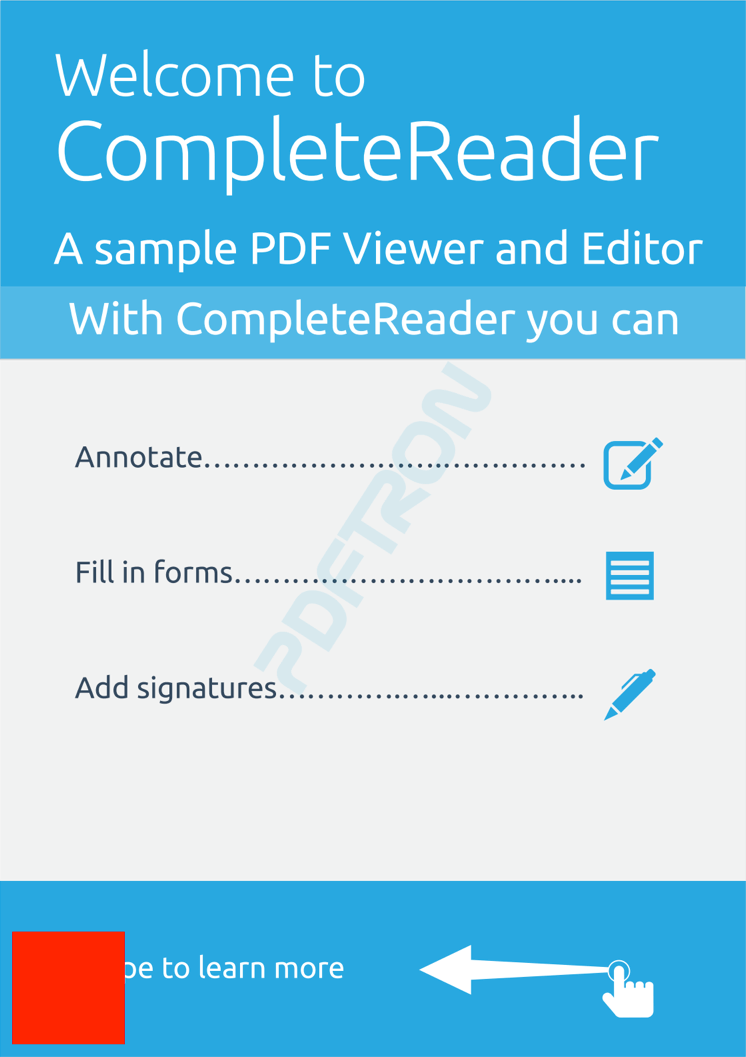
A red `UIView` positioned near the bottom left hand corner of the first page.
## XML attributes
`CustomRelativeLayout` allows child views to be displayed inside `PDFViewCtrl`. XML attributes for positioning `CustomRelativeLayout` in `PDFViewCtrl` are defined in the table below:
| Attribute | Description |
| ----------------------- | ---------------------------------------------------------------------------------------------------------------------------------- |
| `app:posX` | Specifies the x-coordinate in [PDF page coordinates ](/xamarin/viewer/viewer/coordinates.md). Default value: 0 |
| `app:posY` | Specifies the y-coordinate in [PDF page coordinates ](/xamarin/viewer/viewer/coordinates.md). Default value: 0 |
| `app:pageNum` | Specifies the page number of the document that will contain this `CustomRelativeLayout`. Default value: 1 |
| `app:zoomWithParent` | Specifies whether the `CustomRelativeLayout` will zoom with parent. Default value: true |
| `android:layout_width` | Specifies the width of the view, it must be a positive integer in [PDF page coordinates ](/xamarin/viewer/viewer/coordinates.md). |
| `android:layout_height` | Specifies the height of the view, it must be a positive integer in [PDF page coordinates ](/xamarin/viewer/viewer/coordinates.md). |
| {% endtab %} | |
{% tab title="iOS" %}
## Add a custom view to a page in Xamarin.iOS
{% hint style="info" %}
**This tutorial only applies to Xamarin.iOS. See Xamarin.Android equivalent here .**
{% endhint %}
This guide demonstrates how to make a \`UIView\` appear as if it is stuck to a page.
It is convenient for the user to make a `UIView` that is "stuck" to a page record its desired page location. To do this, you could add an extension/category to a `UIView`, or use a derived class, as shown below:
{% tabs %}
{% tab title="C#" %}
{% code lineNumbers="true" %}
```csharp
public class FloatingView : UIView
{
public FloatingView() : base()
{
}
public int PageNumber { get; set; }
public pdftron.PDF.Rect PdfPageRect { get; set; }
}
```
{% endcode %}
{% endtab %}
{% tab title="Swift" %}
{% code lineNumbers="true" %}
```swift
class FloatingView: UIView {
// the page on which the UIView appears
var pageNumber: Int32 = 0
// the location, expressed in PDF coordinates, at which the view appears
var pdfPageRect: PTPDFRect?
}
```
{% endcode %}
{% endtab %}
{% tab title="Obj-C" %}
{% code lineNumbers="true" %}
```objc
@interface FloatingView : UIView
// the page on which the UIView appears
@property (assign, nonatomic) int pageNumber;
// the location, expressed in PDF coordinates, at which the view appears
@property (strong, nonatomic) PTPDFRect* pdfPageRect;
@end
@implementation FloatingView
@end
```
{% endcode %}
{% endtab %}
{% endtabs %}
In this example, we will add a red square to a location near the bottom left hand corner of the first page:
{% tabs %}
{% tab title="C#" %}
{% code lineNumbers="true" %}
```csharp
var mCustomView = new FloatingView();
mCustomView.BackgroundColor = UIColor.Red;
mCustomView.PageNumber = 1;
mCustomView.PdfPageRect = new Rect(10, 10, 100, 100);
mPdfViewCtrl.OverlayView.AddSubview(mCustomView);
// position the view
positionFloatingViews();
```
{% endcode %}
{% endtab %}
{% tab title="Swift" %}
{% code lineNumbers="true" %}
```swift
// prepare the new view
let redRect = FloatingView()
redRect.backgroundColor = UIColor.red
redRect.pageNumber = 1
redRect.pdfPageRect = PTPDFRect(x1: 10, y1: 10, x2: 100, y2: 100)
// add the view to PTPDFViewCtrl's overlayView
self.pdfViewCtrl.overlayView.addSubview(redRect)
// position the view
positionFloatingViews()
```
{% endcode %}
{% endtab %}
{% tab title="Obj-C" %}
{% code lineNumbers="true" %}
```objc
// prepare the new view
FloatingView* redRect = [[FloatingView alloc] init];
[redRect setBackgroundColor:[UIColor redColor]];
redRect.pageNumber = 1;
redRect.pdfPageRect = [[PTPDFRect alloc] initWithX1:10 y1:10 x2:100 y2:100];
// add the view to PTPDFViewCtrl's overlayView
[self.pdfViewCtrl.overlayView addSubview:redRect];
// position the view
[self positionFloatingViews];
```
{% endcode %}
{% endtab %}
{% endtabs %}
Without the last line in the code snippet above, the new view would not appear in the correct location. The following method will position it, and any others that have been added:
{% tabs %}
{% tab title="C#" %}
{% code lineNumbers="true" %}
```csharp
void positionFloatingViews()
{
foreach (UIView view in mPdfViewCtrl.OverlayView.Subviews)
{
if (view is FloatingView)
{
var overlayView = view as FloatingView;
bool pageHidden = false;
if (!mPdfViewCtrl.PagePresentationModeIsContinuous)
{
pageHidden = !mPdfViewCtrl.PageIsOnScreen(overlayView.PageNumber);
}
overlayView.Hidden = pageHidden;
CGRect screenRect = mPdfViewCtrl.PDFRectPage2CGRectScreen(TypeConvertHelper.ConvRectToNative(overlayView.PdfPageRect), overlayView.PageNumber);
screenRect.X += (nfloat)mPdfViewCtrl.GetHScrollPos();
screenRect.Y += (nfloat)mPdfViewCtrl.GetVScrollPos();
overlayView.Frame = screenRect;
}
}
}
```
{% endcode %}
{% endtab %}
{% tab title="Swift" %}
{% code lineNumbers="true" %}
```swift
func positionFloatingViews() {
for case let overlayView as FloatingView in self.pdfViewCtrl.overlayView.subviews {
// make sure this is a floating view
if type(of: overlayView) === FloatingView.self {
var pageHidden = false
if !pdfViewCtrl.pagePresentationModeIsContinuous() {
pageHidden = !pdfViewCtrl.pageIs(onScreen: overlayView.pageNumber)
}
overlayView.isHidden = pageHidden
var screenRect: CGRect = pdfViewCtrl.pdfRectPage2CGRectScreen(overlayView.pdfPageRect, pageNumber: overlayView.pageNumber)
screenRect.origin.x += CGFloat(pdfViewCtrl.getHScrollPos())
screenRect.origin.y += CGFloat(pdfViewCtrl.getVScrollPos())
overlayView.frame = screenRect
}
}
}
```
{% endcode %}
{% endtab %}
{% tab title="Obj-C" %}
{% code lineNumbers="true" %}
```objc
-(void)positionFloatingViews
{
for(FloatingView* overlayView in self.pdfViewCtrl.overlayView.subviews)
{
// make sure this is a floating view
if( [overlayView isMemberOfClass:[FloatingView class]])
{
BOOL pageHidden = NO;
if( ![self.pdfViewCtrl pagePresentationModeIsContinuous] )
{
pageHidden = ![self.pdfViewCtrl pageIsOnScreen:overlayView.pageNumber];
}
overlayView.hidden = pageHidden;
CGRect screenRect = [self.pdfViewCtrl PDFRectPage2CGRectScreen:overlayView.pdfPageRect PageNumber:overlayView.pageNumber];
screenRect.origin.x += [self.pdfViewCtrl GetHScrollPos];
screenRect.origin.y += [self.pdfViewCtrl GetVScrollPos];
overlayView.frame = screenRect;
}
}
}
```
{% endcode %}
{% endtab %}
{% endtabs %}
Whenever the PDF page shifts within the [`PTPDFViewCtrl`](https://sdk.apryse.com/api/xamarinios/tools/api/pdftron.PDF.PDFViewCtrl.html), which may happen when changing the page presentation mode, zooming, and such, the views need to be re-positioned (`positionFloatingViews` needs to run again). To do this, implement the `PTPDFViewCtrl` delegate methods [`pdfScrollViewDidEndZooming:`](https://sdk.apryse.com/api/ios/Protocols/PTPDFViewCtrlDelegate.html#/c:objc\(pl\)PTPDFViewCtrlDelegate\(im\)pdfScrollViewDidZoom:) and [`onLayoutChanged`](https://sdk.apryse.com/api/ios/Protocols/PTPDFViewCtrlDelegate.html#/c:objc\(pl\)PTPDFViewCtrlDelegate\(im\)onLayoutChanged), and in them, call `positionFloatingViews`:
{% tabs %}
{% tab title="C#" %}
{% code lineNumbers="true" %}
```csharp
mPdfViewCtrl.PdfViewCtrlOnLayoutChanged += (sender, e) =>
{
positionFloatingViews();
};
mPdfViewCtrl.PdfScrollViewDidEndZooming += (sender, e) =>
{
positionFloatingViews();
};
```
{% endcode %}
{% endtab %}
{% tab title="Swift" %}
{% code lineNumbers="true" %}
```swift
func pdfViewCtrl(onLayoutChanged pdfViewCtrl: PTPDFViewCtrl!) {
positionFloatingViews()
}
func pdfViewCtrl(_ pdfViewCtrl: PTPDFViewCtrl!, pdfScrollViewDidEndZooming scrollView: UIScrollView!, with view: UIView!, atScale scale: Float) {
positionFloatingViews()
}
```
{% endcode %}
{% endtab %}
{% tab title="Obj-C" %}
{% code lineNumbers="true" %}
```objc
-(void)pdfViewCtrlOnLayoutChanged:(PTPDFViewCtrl *)pdfViewCtrl
{
[self positionFloatingViews];
}
-(void)pdfViewCtrl:(PTPDFViewCtrl *)pdfViewCtrl pdfScrollViewDidEndZooming:(UIScrollView *)scrollView withView:(UIView *)view atScale:(float)scale
{
[self positionFloatingViews];
}
```
{% endcode %}
{% endtab %}
{% endtabs %}
{% endtab %}
{% endtabs %}
---
# Agent Instructions
This documentation is published with GitBook. GitBook is the documentation platform designed so that both humans and AI agents can read, navigate, and reason over technical content effectively. Learn more at gitbook.com.
## Querying This Documentation
If you need additional information that is not directly available in this page, you can query the documentation by asking a question.
Perform an HTTP GET request on the following URL with the `ask` and `goal` query parameters:
```
GET https://docs.apryse.com/xamarin/ui-customization/custom-view.md?ask=&goal=
```
`ask` is the immediate question: it should be specific, self-contained, and written in natural language.
`goal` is what the user is ultimately trying to achieve, the reason they need the answer. Sharing it helps GitBook give you a better, more relevant answer. A goal is most helpful when it describes the outcome the user wants rather than restating the question. For example, with `ask=how do I create an API token`, a goal like `automate deployments from our CI pipeline` lets GitBook tailor the answer to that use case.
The response will contain a direct answer to the question and relevant excerpts and sources from the documentation.
Use this mechanism when the answer is not explicitly present in the current page, you need clarification or additional context, or you want to retrieve related documentation sections.